How to Hide the LinkedIn Premium Badge: Complete Step-by-Step Guide
Want to hide LinkedIn Premium badge visibility without losing your paid subscription benefits? LinkedIn allows Premium subscribers to remove the gold badge from their profiles while continuing to use their subscription features. You can change this setting on a desktop computer or through the LinkedIn mobile app.
Although the Premium badge indicates paid membership, displaying it is completely optional. Some professionals prefer showing their subscription status, while others want a cleaner profile that emphasizes their experience, skills, and achievements.
Understanding how to hide LinkedIn Premium badge visibility can help you manage your professional appearance and decide what information others see.
In this guide, you’ll learn how to remove the badge, understand what it represents, troubleshoot common problems, and decide whether keeping it visible makes sense for your professional goals.
What Is the LinkedIn Premium Badge?
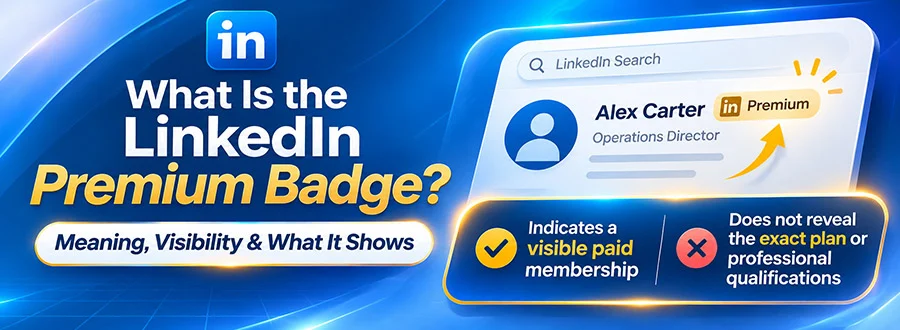
The LinkedIn Premium badge is a gold-colored symbol that appears on profiles belonging to eligible Premium subscribers who choose to display their membership status.
LinkedIn places this badge near a member’s name on their profile. It may also appear beside their name in LinkedIn search results.
Understanding LinkedIn Premium badge meaning is helpful because the symbol communicates membership information rather than professional qualifications.
The badge generally indicates that someone has access to a qualifying paid LinkedIn subscription. However, it does not reveal the person’s specific subscription plan, professional expertise, or reasons for purchasing Premium.
LinkedIn offers different subscription options designed for job seekers, professionals, businesses, and sales teams.
Depending on the subscription, members may receive additional search insights, messaging capabilities, professional learning resources, or other advanced tools.
However, these features are associated with the subscription itself, not the badge displayed on the profile.
What Does the Gold LinkedIn Badge Represent?
The gold symbol identifies a member who has chosen to make their qualifying Premium membership visible.
It does not confirm that the individual is more experienced, more trustworthy, or better qualified than someone using a free account.
For example, an experienced industry professional may use a basic LinkedIn account, while a recent graduate may subscribe to Premium to explore career opportunities.
Both individuals can maintain strong professional profiles regardless of their membership status.
The badge is simply an optional indicator of subscription visibility.
Where Does the LinkedIn Premium Badge Appear?
The badge typically appears in two important locations:
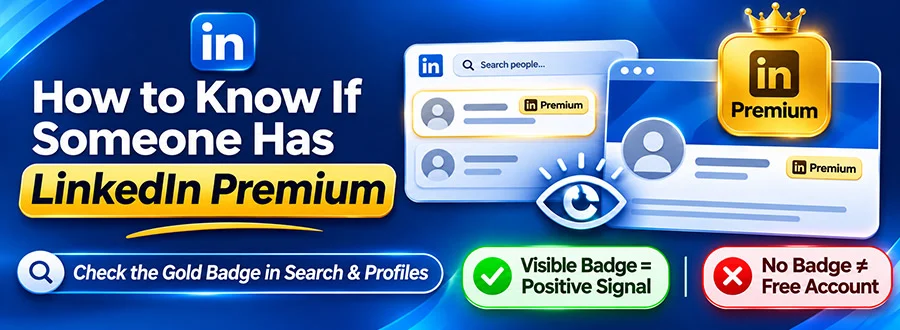
- LinkedIn profile: Near the member’s name or profile introduction.
- LinkedIn search results: Beside the member’s name when their Premium visibility is enabled.
These placements can make the symbol noticeable to recruiters, employers, potential clients, and other LinkedIn users.
If you prefer not to display your subscription, LinkedIn provides a dedicated setting to control its visibility.
How to Hide LinkedIn Premium Badge on Desktop
Learning how to hide LinkedIn Premium badge visibility on a desktop is straightforward because the option is available within your profile editing settings.
You don’t need to cancel your subscription, change your account type, or contact LinkedIn customer support.
Follow these steps using your preferred web browser.
Step 1: Sign In to Your LinkedIn Account
Open LinkedIn and sign in using your registered email address and password.
Make sure you’re accessing the account associated with your Premium subscription.
Once logged in, you’ll reach your LinkedIn homepage, where you can access your profile and account settings.
Step 2: Open Your LinkedIn Profile
Click the Me icon near the top of the LinkedIn homepage.
A dropdown menu will appear with several account options.
Select your profile card to open your LinkedIn profile page.
This page contains your profile picture, headline, professional experience, education, and other publicly displayed information.
Step 3: Access the Edit Introduction Section
Locate the introduction section at the top of your profile.
Click the pencil-shaped Edit icon.
LinkedIn will open the Edit intro window, which allows you to modify selected profile details and access Premium visibility controls.
Step 4: Find the Premium Badge Settings
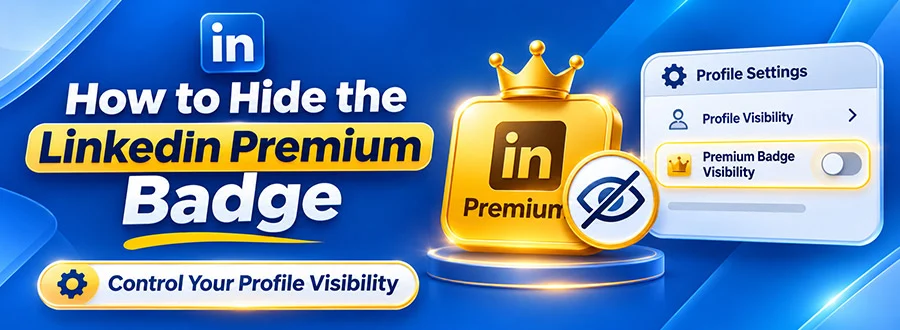
Inside the Edit intro window, locate the Premium Settings section.
Look for Profile Premium Badge and click the dropdown icon next to it.
This section contains the option that determines whether your gold membership badge appears on your LinkedIn profile.
Step 5: Turn Off the Premium Badge
Find the toggle labeled Profile Premium Badge.
Move the switch to the left or set it to Off.
Disabling this setting tells LinkedIn not to display the gold Premium symbol on your profile or beside your name in search results.
Step 6: Save Your Changes
Click Save in the lower-right corner of the editing window.
Return to your profile and check whether the gold badge is no longer visible.
You can also reopen the same setting to confirm that the switch remains disabled.
That’s the complete desktop process. Your Premium subscription remains active, and you can continue using the features included in your plan.
How to Hide LinkedIn Premium Badge on Mobile
If you regularly access LinkedIn through your smartphone, you can manage the same visibility preference without using a computer.
The process is similar on Android devices and iPhones, although the appearance of individual menus may vary slightly between app versions.
Here’s how to hide LinkedIn Premium badge visibility through the mobile application.
Step 1: Launch the LinkedIn App
Open the LinkedIn application on your Android phone or iPhone.
Sign in to your Premium account if you’re not already logged in.
Make sure you’re using an updated version of the application to access the latest profile settings.
Step 2: Navigate to Your Profile
Tap your profile photo in the upper-left corner.
When the navigation panel opens, tap your profile card to view your complete LinkedIn profile.
Step 3: Edit Your Profile Introduction
Find the pencil-shaped Edit icon in your profile introduction section.
Tap it to access the Edit intro page.
Scroll or navigate to the area labeled Premium Settings.
Step 4: Disable Profile Premium Badge
Tap the dropdown icon next to Profile Premium Badge.
Locate the badge visibility toggle and switch it to Off.
The setting controls whether your gold Premium symbol appears to other users.
Step 5: Save and Verify
Tap Save to apply your changes.
Return to your profile and review its appearance.
If the symbol remains visible, close and reopen the application before checking again.
Your subscription continues normally after the change, and you can enable the badge again whenever you want.
Why Do People Hide Their LinkedIn Premium Badge?
Different professionals have different reasons for controlling their membership visibility.
Some want to maintain a minimalist profile, while others prefer keeping their purchasing decisions separate from their professional identity.
Understanding LinkedIn Premium badge meaning can help you decide whether displaying the symbol supports your goals.
1. Maintain a Cleaner Professional Appearance
A well-organized LinkedIn profile helps visitors focus on relevant information.
Your headline, professional experience, achievements, and featured projects generally communicate more about your capabilities than a subscription symbol.
Removing the gold icon can create a simpler presentation, especially if you prefer a minimalist personal brand.
For professionals who value clean visual design, even small profile details can influence the overall impression.
2. Keep Subscription Choices Private
Some users simply don’t want their paid membership status displayed.
They may consider subscription purchases personal information that doesn’t need to be highlighted publicly.
Disabling the badge offers an additional level of control over how their LinkedIn profile appears.
However, hiding the symbol does not make your entire account private or guarantee that nobody can infer your subscription status.
3. Focus Attention on Professional Qualifications
Recruiters and potential clients often evaluate candidates through their experience, skills, accomplishments, and professional connections.
A visible subscription badge doesn’t replace these important details.
By removing the icon, professionals can encourage visitors to focus on the information most relevant to their expertise.
This approach can be useful for consultants, freelancers, executives, and job seekers who want their achievements to lead the conversation.
4. Maintain a Consistent Personal Brand
Personal branding involves creating a recognizable professional identity.
Your profile picture, headline, background image, About section, and content should communicate a consistent message.
Some users believe the gold badge complements their image, while others prefer not to include subscription-related indicators.
Neither approach is automatically better.
The most appropriate choice depends on your audience and the impression you want to create.
What Happens After You Hide the Premium Badge?
One common concern about how to hide LinkedIn Premium badge visibility is whether changing the setting affects paid membership benefits.
The important distinction is that badge visibility and subscription access are separate.
Turning off the profile symbol does not cancel your subscription.
You can continue using the Premium features available under your active membership.
Does Hiding the Badge Cancel LinkedIn Premium?
No. Hiding the Premium badge does not cancel your paid LinkedIn subscription.
Your billing arrangement continues unless you separately cancel or modify your membership.
Disabling the symbol only changes how your subscription is displayed on your profile and in search results.
If you want to stop paying for LinkedIn Premium, you’ll need to manage your subscription through the appropriate billing or cancellation settings.
Will You Lose Premium Features?
No. Removing the badge does not automatically remove the benefits included in your subscription.
Depending on your plan, you may retain access to features such as:
- Additional profile viewer insights.
- Premium messaging or InMail allowances.
- LinkedIn Learning courses.
- Advanced job-related information.
- Business and professional networking tools.
- Other plan-specific Premium capabilities.
The exact tools available depend on your subscription.
A hidden badge does not downgrade your membership to a free account.
Can Other People Still Know You Have Premium?
Possibly. Although the gold symbol disappears from the relevant profile displays, other LinkedIn features or interactions may provide clues about your account capabilities.
Therefore, removing the badge should be understood as a visibility preference rather than a complete privacy guarantee.
If privacy is your main concern, review your broader LinkedIn settings as well.
LinkedIn Premium Badge vs. LinkedIn Verification Badge
Many LinkedIn members confuse the gold Premium badge with LinkedIn’s identity or workplace verification indicators.
However, they serve different purposes.
Understanding LinkedIn Premium badge meaning becomes easier when you compare these features.
| Feature | Premium Badge | Verification Badge |
| Main purpose | Indicates qualifying Premium membership | Indicates completed verification |
| Requires paid subscription | Generally associated with qualifying subscriptions | Not necessarily |
| Shows professional qualifications | No | No |
| Main benefit | Displays membership status | Adds verified identity or workplace information |
| Visibility controls | Premium badge toggle | Separate verification controls |
Is the Premium Badge a Verification Symbol?
No. A Premium badge does not prove that LinkedIn has verified someone’s identity, workplace, or educational background.
It primarily communicates qualifying subscription membership.
Verification features are designed to confirm specific details through supported verification methods.
For this reason, employers and recruiters should not treat a Premium badge as proof of authenticity.
Is the Premium Badge Better Than Verification?
Neither badge is universally better because they serve different purposes.
Premium visibility communicates subscription status, while verification provides information about completed verification checks.
For professionals who want to strengthen trust, accurate profile information, relevant experience, and applicable verification indicators may be more meaningful than paid membership alone.
How to Show Your LinkedIn Premium Badge Again
LinkedIn allows you to reverse your visibility preference.
If you previously disabled the symbol but later decide to display it, simply return to your profile editing settings.
The process closely resembles how to hide LinkedIn Premium badge visibility, except you’ll turn the option on instead.
Follow these steps:
- Sign in to LinkedIn.
- Open your profile.
- Click or tap the Edit icon in your introduction section.
- Open Premium Settings.
- Select Profile Premium Badge.
- Switch the visibility toggle to On.
- Save your changes.
After saving, your gold badge can appear again on your profile and beside your name in search results.
You can revisit this preference whenever your professional goals or personal preferences change.
Common Problems When Hiding the LinkedIn Premium Badge
Although the process is simple, you may occasionally experience problems finding the correct menu or applying your changes.
Most issues can be investigated through basic account checks and application troubleshooting.
Premium Badge Settings Are Missing
If you can’t locate the Premium Settings section, first confirm that you’re signed in to the correct account.
Check whether your account has an eligible Premium subscription or supported profile visibility option.
LinkedIn also notes that Recruiter and Sales Navigator subscription arrangements can affect how Premium profile visibility is provided.
If your organization manages your subscription, the options available may differ from those on a personally purchased plan.
The Badge Is Still Showing
After turning off visibility, return to the setting and confirm that the toggle is disabled.
Also verify that you selected Save before leaving the editing window.
If the symbol remains visible, refresh your browser or restart the LinkedIn app.
Try viewing your profile again after signing out and back in.
If the issue continues, consult LinkedIn’s official Help Center rather than assuming the subscription needs to be canceled.
Changes Are Not Saving
A temporary connection problem, outdated application, or browser issue may interfere with saving profile changes.
Check your internet connection and retry the process.
On mobile, update the LinkedIn application if a newer version is available.
On desktop, try another supported browser or a private browsing window to investigate whether stored browser data is affecting the interface.
Avoid repeatedly changing unrelated account settings while troubleshooting.
The Instructions Look Different
LinkedIn occasionally updates menu labels, layouts, and account interfaces.
If the available controls don’t match older tutorials, look for the Edit intro section and its Premium visibility options.
The official LinkedIn Help Center provides current instructions for supported devices.
For guidance, visit LinkedIn’s Premium Profile Visibility Help page.
Should You Hide or Display Your LinkedIn Premium Badge?
Deciding whether to display the badge depends on your professional priorities.
There is no universal rule that makes one option better for every LinkedIn member.
Understanding LinkedIn Premium badge meaning helps you evaluate the choice without confusing subscription status with professional credibility.
When Hiding the Badge Makes Sense
Removing the symbol may suit professionals who prefer a cleaner profile or want to keep subscription information less visible.
For example, a consultant building a reputation through published insights may want visitors to focus on expertise and accomplishments.
Similarly, a job seeker may prefer emphasizing relevant skills, certifications, and career achievements.
In these situations, the badge may provide little additional value to the overall profile presentation.
When Displaying the Badge Makes Sense
Other users may prefer showing their Premium membership.
They might appreciate the visual distinction or consider subscription visibility part of their professional presentation.
Some members also want others to recognize that they use Premium networking tools.
However, displaying the symbol doesn’t guarantee more connections, better search rankings, additional job interviews, or increased profile views.
Those outcomes depend on several factors, including profile quality, activity, network relevance, and hiring demand.
Does Removing the Badge Affect LinkedIn Reach?
LinkedIn doesn’t establish that hiding the badge automatically improves or reduces organic content distribution.
Your posts, comments, professional relationships, and audience engagement contribute to how people discover your profile.
Instead of treating the badge as a ranking shortcut, prioritize useful content and accurate professional information.
The visibility setting should mainly reflect how you want your profile presented.
LinkedIn Premium Badge and Open Profile Settings
Another important consideration when exploring how to hide LinkedIn Premium badge visibility is LinkedIn’s Open Profile feature.
Open Profile allows eligible Premium members to receive messages from other LinkedIn users without requiring those people to use InMail.
However, Premium badge visibility and Open Profile messaging are different settings.
LinkedIn provides separate controls for these options.
Does Hiding the Badge Disable Open Profile?
You should not assume that turning off the gold badge automatically changes your Open Profile messaging preference.
Review the Open Profile setting independently to understand who can contact you.
LinkedIn confirms that Premium membership visibility and Open Profile messaging have separate controls.
How Can You Manage Open Profile?
Open your LinkedIn profile and access the Edit intro section.
Find the relevant Premium settings and locate Open Profile.
You can then review or change whether eligible members are allowed to contact you through this feature.
Save any changes before leaving the page.
For further details, see LinkedIn’s official Open Profile instructions.
Tips for Optimizing Your LinkedIn Profile Without the Premium Badge
Removing the gold symbol doesn’t mean your profile needs to become less noticeable.
A strong LinkedIn presence relies on clear professional information and meaningful engagement.
Once you understand how to hide LinkedIn Premium badge visibility, consider improving the elements that communicate your value directly.
Write a Clear, Keyword-Relevant Headline
Your LinkedIn headline should explain your professional role and specialization.
Instead of relying only on a generic job title, include relevant expertise that potential employers or clients may search for.
For example, a digital marketing professional might mention SEO strategy, content marketing, and organic growth.
Use natural language rather than filling the headline with repetitive keywords.
Improve Your About Section
A useful About section explains what you do, who you help, and what makes your experience relevant.
Start with a clear professional introduction.
Then describe your main capabilities, important achievements, and areas of specialization.
Whenever possible, include specific outcomes that demonstrate your contribution.
Avoid unsupported claims and exaggerated statements.
Highlight Relevant Experience
Keep your work history updated with accurate job titles, employment dates, responsibilities, and accomplishments.
Use clear descriptions that explain the business value of your work.
Specific achievements often communicate more than vague statements about being motivated or results-oriented.
Build Professional Relationships
Connect with professionals in your industry and engage with relevant discussions.
Thoughtful comments, helpful posts, and meaningful conversations can strengthen your visibility.
Focus on relationship quality rather than collecting connections without a clear purpose.
Maintain Consistent Profile Information
Make sure your profile photograph, headline, work experience, and contact details present a coherent professional identity.
Review outdated information periodically.
An accurate and relevant profile gives visitors a clearer understanding of your capabilities, regardless of whether the gold badge is visible.
Frequently Asked Questions
1. How to Hide LinkedIn Premium Badge Without Cancelling the Subscription?
To hide LinkedIn Premium badge visibility, open your profile, select Edit intro, expand Premium Settings, turn off Profile Premium Badge, and save. Your paid subscription remains active, and the available Premium features are retained.
2. Can I Hide My LinkedIn Premium Badge on Android and iPhone?
Yes. The LinkedIn mobile app provides a Premium badge visibility option through your profile introduction settings. Open your profile, tap Edit, locate Profile Premium Badge, disable the toggle, and save.
3. What Is LinkedIn Premium Badge Meaning?
LinkedIn Premium badge meaning refers to the gold symbol indicating that a member has chosen to display their qualifying Premium subscription. It doesn’t verify professional expertise, guarantee credibility, or identify the exact subscription plan.
4. Will Recruiters Know I Have Premium If I Hide the Badge?
The badge will no longer be displayed beside your name in the relevant profile and search locations. However, hiding it doesn’t guarantee that your subscription status cannot be inferred through other interactions or features.
5. Does Hiding the Premium Badge Affect Job Applications?
Disabling the badge doesn’t automatically prevent you from applying for jobs or using the job-search capabilities included in your subscription. Your qualifications, profile relevance, and applications remain important factors in recruitment.
6. Can I Turn the LinkedIn Premium Badge Back On?
Yes. Open the same Premium Settings section in your profile editor, enable Profile Premium Badge, and save. You can change the visibility preference again while your account remains eligible.
7. Is the LinkedIn Premium Badge Visible to Everyone?
When Premium profile visibility is enabled, LinkedIn displays the badge on your profile and alongside your name in search results. Turning the setting off removes that displayed membership indicator from those locations.
8. Does the LinkedIn Premium Badge Increase Profile Views?
Displaying the badge may distinguish your profile visually, but it doesn’t guarantee more views. Profile quality, professional relevance, activity, and audience interest also influence how people discover and engage with your account.
9. Can Free LinkedIn Users Display the Gold Premium Badge?
The gold Premium badge is associated with qualifying subscriptions and supported Premium profile visibility. Standard free accounts generally don’t have access to this membership indicator.
10. Why Can’t I Find My LinkedIn Premium Badge Settings?
The option may be unavailable because of your subscription type, account eligibility, or interface changes. Confirm your account status, update the app, and check the Edit intro section before contacting LinkedIn support.
Final Thoughts
Knowing how to hide LinkedIn Premium badge visibility gives you greater control over your professional profile without requiring you to give up paid membership benefits.
The process is simple: open your profile, access the introduction editor, find Premium Settings, disable Profile Premium Badge, and save your changes.
Your subscription continues normally, and you can restore the symbol whenever you prefer.
Understanding LinkedIn Premium badge meaning also helps you recognize that the gold icon represents subscription visibility rather than professional qualifications or verified expertise.
Ultimately, the best choice depends on your personal branding goals, privacy preferences, and how you want others to perceive your LinkedIn presence.
Whether you display the badge or remove it, prioritize an accurate profile, relevant accomplishments, meaningful professional connections, and useful content. These elements provide lasting value beyond any membership symbol.