LinkedIn Verification Not Working? Here’s the Fix (2026)
linkedin verification not working can be frustrating, especially when you need to access your professional account, complete an identity check, or recover a restricted LinkedIn profile. You follow the instructions, upload your documents, or attempt to verify your workplace, but the process keeps failing without a clear explanation.
Sometimes, the verification page refuses to load. Other times, your identification document gets rejected, the verification link expires, or the process becomes stuck.
These issues can interrupt job applications, networking opportunities, and important business conversations.
Fortunately, many verification difficulties can be resolved by identifying the actual cause and following the appropriate troubleshooting steps.
In this guide, you’ll learn why verification fails, how to resolve common errors, what to do when identity checks are rejected, and how to contact LinkedIn support when standard solutions don’t work.
Whether you’re verifying your identity, workplace, or account ownership, understanding the process can help you avoid unnecessary delays.
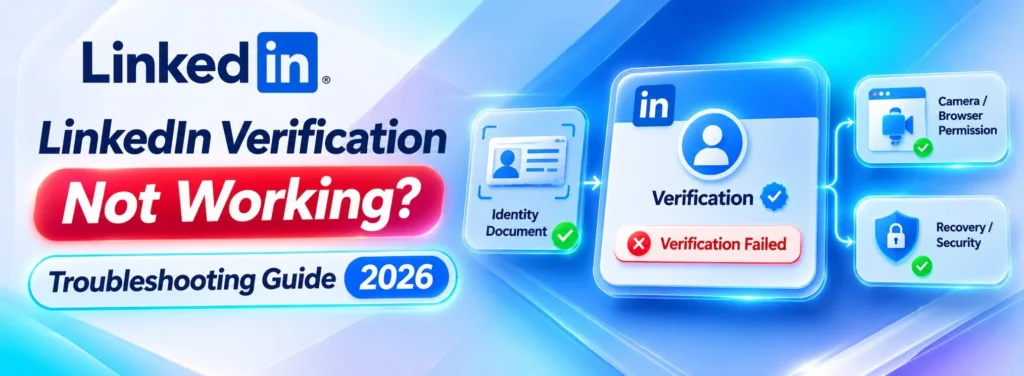
Why Is LinkedIn Verification Not Working in 2026?
When linkedin verification not working becomes an ongoing issue, the first step is understanding which part of the process has failed.
LinkedIn provides different verification experiences depending on your country, account eligibility, verification purpose, and available identity-verification partners.
Some members verify their identity to display a verification badge. Others must confirm their identity to recover a restricted account or resolve a security concern.
These processes may have different requirements.
Common Reasons LinkedIn Verification Fails
A linkedin verification problem can occur for several reasons, including unsupported identification documents, incorrect personal information, camera permission issues, expired verification sessions, or technical difficulties.
Common causes include:
- Your identification document is unsupported or expired.
- Your LinkedIn profile information doesn’t match the submitted identity details.
- Your browser blocks necessary camera permissions.
- Your device cannot complete the required verification process.
- Your verification session expires before completion.
- Your country or account isn’t eligible for a particular verification method.
- The verification provider experiences a temporary technical issue.
- Your account requires additional security review.
Not every failed attempt indicates a problem with your identity.
Sometimes, the issue is simply related to device compatibility, document readability, or the specific verification method being used.
Understanding Different Verification Methods
The linkedin verification process isn’t identical for every member.
Depending on availability and eligibility, LinkedIn may offer identity verification through an approved provider, workplace verification through an organization, or other supported methods.
Account-recovery verification can also differ from optional profile verification.
Before troubleshooting, identify the exact verification request displayed on your screen.
This distinction prevents you from following instructions intended for an entirely different process.
1. Check Whether Your Identity Document Is Supported
One of the first things to investigate when linkedin verification not working is the identification document you’re attempting to submit.
Identity-verification providers typically require specific document types and may apply country-specific eligibility requirements.
An identification card accepted in one country may not be supported through the same verification method elsewhere.
Why LinkedIn May Reject Your ID
Document rejection can happen when the submitted identification doesn’t meet the verification provider’s requirements.
For example, your document might be expired, damaged, difficult to read, or missing information required for verification.
Some verification methods require an eligible passport or a document with particular electronic security features.
Others may support additional government-issued identification types.
The exact requirements depend on the verification flow.
How to Fix Document-Related Errors
Start by checking the document requirements shown during your verification attempt.
Confirm that your identification is valid and supported.
If the process requires a photograph, make sure the entire document is visible and that important information isn’t covered by glare or shadows.
Avoid editing document photographs or using screenshots when the process requires a live capture.
If your document isn’t supported, check whether LinkedIn offers another verification method for your account.
What If Your Country Isn’t Supported?
Not all verification methods are available in every country.
If your location isn’t eligible, repeatedly submitting the same document won’t necessarily resolve the issue.
Review LinkedIn’s current eligibility information and use another officially supported method if one is available.
Availability may change as verification services expand.
2. Make Sure Your LinkedIn Profile Information Is Accurate
A linkedin verification problem may also involve differences between the information on your LinkedIn account and your official identification.
Identity verification is intended to establish confidence that an account represents the person claiming ownership.
Significant inconsistencies can make that process more difficult.
Does Your LinkedIn Name Need to Match Your ID?
Name consistency can matter during identity checks, but requirements depend on the verification method.
For example, a member might use a professional name on LinkedIn while their identification displays a longer legal name.
Other differences may involve spelling, name order, or legitimate name changes.
These situations don’t automatically indicate fraud.
However, they may require additional review or a supported verification procedure.
How to Resolve Name Mismatches
Review the name displayed on your profile and compare it with your identification.
If the profile contains a genuine spelling mistake, correct it through LinkedIn’s official settings.
If you use a preferred or professional name, consult LinkedIn’s applicable name policies and verification guidance.
Avoid changing your identity information repeatedly just to force approval.
Use accurate information and follow any instructions provided by the verification service.
Should You Change Your Name Before Verification?
Not necessarily.
Changing your name without understanding the actual error may create additional confusion.
First determine whether the failure involves a name mismatch, unsupported document, or unrelated technical issue.
Only make corrections that accurately represent your identity.
3. Fix Camera and Mobile Device Permission Issues
If linkedin verification not working occurs while capturing your ID or completing a selfie check, your device may be preventing the verification service from accessing its required features.
Camera permissions are especially important when the process involves live document capture or facial matching.
Why Camera Verification Gets Stuck
Some users encounter a blank camera screen, repeated loading animation, or permission request that never completes.
Possible causes include disabled permissions, outdated software, browser restrictions, or interference from another application.
A poor internet connection can also interrupt the session.
These technical difficulties don’t necessarily mean your identification has been rejected.
How to Fix Camera Access
Open your device settings and confirm that the relevant browser or application has permission to use the camera.
Close applications that might already be using it.
Update your browser and LinkedIn application to supported versions.
If the verification instructions require a mobile device, use a compatible smartphone with a functioning camera.
Restarting the device can sometimes resolve temporary permission or application problems.
Improve Your Verification Photos
Choose a well-lit location and place your document against a plain background.
Keep the camera steady and ensure the text remains readable.
For selfie verification, follow the on-screen instructions carefully.
Avoid filters, excessive shadows, and anything that obscures required facial features.
If the service requests a live capture, don’t substitute a previously saved image.
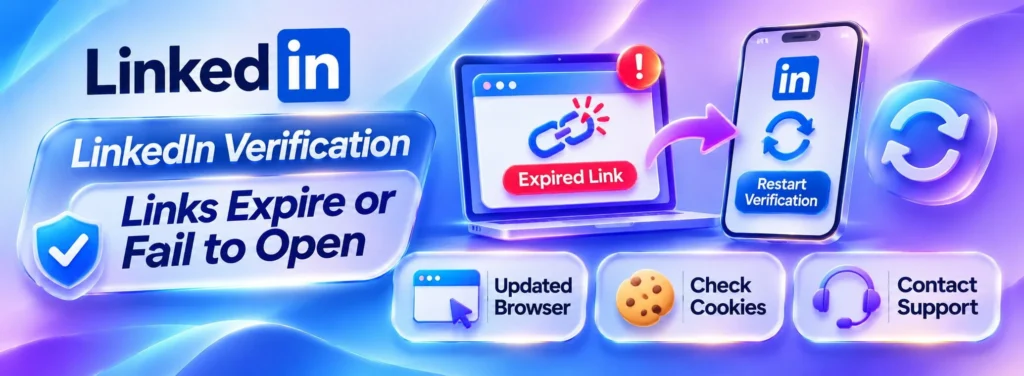
4. Resolve Verification Links That Expire or Fail to Open
A failed linkedin verification link can prevent you from completing the process even when your identity details are correct.
Verification links may be time-sensitive or associated with a particular session.
Opening an outdated link can lead to an error or redirect you to an unexpected page.
Why Verification Links Stop Working
A link may expire after a certain period or become invalid when a session ends.
Problems can also occur when users switch devices, change browsers, or interrupt an active verification attempt.
Email security tools and browser settings may occasionally interfere with redirects.
The exact behavior depends on the verification service.
How to Fix an Expired Verification Link
Return to the official LinkedIn verification page or the relevant account-recovery flow.
If an option to restart the process is available, use it to generate a fresh session.
Avoid repeatedly opening old links.
Complete the new verification attempt without unnecessary interruptions.
If the process requires you to move from a computer to a smartphone, follow the displayed instructions for that transition.
What If the Verification Page Keeps Redirecting?
Check whether you’re signed in to the correct LinkedIn account.
Try a supported, updated browser and temporarily disable extensions that interfere with page functionality.
Make sure cookies and essential website permissions aren’t being blocked.
If the issue continues, record the error message before contacting support.
5. Troubleshoot LinkedIn Verification Stuck on Loading
Another frustrating situation occurs when linkedin verification not working appears as an endless loading screen.
You may reach the verification page successfully, but the next step never appears.
This can happen before document submission, during identity capture, or after completing the requested steps.
What Causes an Endless Loading Screen?
Potential causes include temporary service interruptions, browser compatibility issues, unstable connections, and blocked scripts.
Certain privacy extensions or network security settings may interfere with third-party verification pages.
However, an endless loading screen doesn’t reveal the exact cause.
Steps to Fix a Loading Error
First, check your internet connection.
Switch to a stable network if the current connection frequently disconnects.
Close the verification page and restart the process through the official LinkedIn interface.
If necessary, clear relevant browser cache and cookies, understanding that doing so may sign you out.
Try an updated browser or another compatible device.
Avoid using unofficial applications that claim to repair verification errors.
When Should You Stop Retrying?
If the same error appears repeatedly, continuing identical attempts may not help.
Instead, document what happens and check whether LinkedIn provides an error code or support option.
A temporary service issue may require waiting until the provider restores normal functionality.
6. Fix Workplace Verification Problems
Workplace linkedin verification allows eligible members to confirm an association with an organization through supported methods.
However, workplace verification isn’t available to every employee or organization.
Availability depends on the employer’s participation, technical setup, and the verification options LinkedIn supports.
Why Workplace Verification May Fail
A linkedin verification problem involving employment can occur when your organization hasn’t enabled a supported method.
Your work email domain may also be ineligible or not recognized for the available verification flow.
In other cases, an organization-managed identity system may require additional setup.
Using a personal email address generally won’t substitute for an eligible work address when work-email verification is required.
How to Verify Your Workplace Successfully
Check whether your organization supports LinkedIn’s available workplace verification methods.
If work-email verification is offered, use the eligible company email address associated with your employment.
Review your inbox and spam folder for the verification message.
If your employer uses an organization-managed verification system, contact the appropriate IT or identity administrator for assistance.
Don’t attempt to verify employment through another person’s credentials.
Can Freelancers Verify Their Workplace?
Freelancers and self-employed professionals may not have access to the same workplace verification options as employees of participating organizations.
Eligibility depends on the available methods.
A lack of workplace verification doesn’t automatically mean your LinkedIn profile is invalid or untrustworthy.
7. Resolve LinkedIn Verification Problems After Account Restrictions
If linkedin verification not working occurs while recovering a restricted account, the situation requires particular attention.
Identity verification during account recovery is different from optional verification intended to display a badge.
LinkedIn may request additional information when it needs to confirm account ownership or investigate potential security concerns.
Why Restricted Accounts Require Verification
LinkedIn may restrict access when it suspects unauthorized activity, identifies potential policy violations, or requires additional security checks.
A restriction doesn’t automatically establish that the account owner intentionally violated a rule.
The recovery process depends on the specific concern.
Some members may be asked to verify their identity, while others may receive different instructions.
How to Complete Account Recovery
Start with the official restriction notice.
Read the instructions carefully and identify which verification method LinkedIn requires.
Use the recovery link provided through a legitimate LinkedIn channel.
Submit only the requested information.
If the process fails, look for the available support or appeal option rather than creating another account to bypass the restriction.
What If Your Verification Gets Rejected?
A rejected submission doesn’t necessarily mean your account can never be recovered.
Review any explanation provided.
If the rejection relates to document quality or missing information, correct the issue before trying again, when permitted.
If you believe the decision is incorrect, use LinkedIn’s official review or appeal process where available.
Approval and recovery time aren’t guaranteed.
8. Check for Temporary Technical Issues
Sometimes, linkedin verification not working has nothing to do with your document, account information, or device.
Verification systems depend on several technical components, including LinkedIn’s services and the external providers involved in certain identity checks.
A temporary problem affecting one component may interrupt the entire process.
How to Identify a Possible Service Issue
If the verification page suddenly stops responding, check whether other LinkedIn features are functioning normally.
You can also review official LinkedIn support communications for any acknowledged service disruptions.
Reports from other users may provide context, but they don’t confirm that a particular service is experiencing an outage.
Avoid assuming that every error is caused by LinkedIn’s servers.
What to Do During a Temporary Failure
Save any error details that appear on your screen.
Close the unsuccessful session and return later through the official verification interface.
If LinkedIn provides a specific waiting period or retry instruction, follow it.
Don’t submit sensitive identity documents to unofficial websites claiming they can complete verification while the normal service is unavailable.
9. Understand Verification Pending and Rejected Statuses
A linkedin verification problem can also involve uncertainty after a submission appears successful.
You may finish uploading your identification and completing the requested steps, only to find that the verification status hasn’t changed.
This doesn’t always mean the process failed.
What Does Verification Pending Mean?
A pending status generally indicates that a verification-related process hasn’t reached a final visible outcome.
Depending on the method, additional processing or review may be necessary.
LinkedIn doesn’t guarantee that every verification request will be completed within the same timeframe.
The instructions and status information displayed in your particular verification flow should guide your next steps.
Why Verification Can Be Rejected
Rejection may result from unsupported documents, unsuccessful identity matching, incomplete submissions, or failure to satisfy eligibility requirements.
The exact reason may not always be disclosed.
When an explanation is available, address that issue before attempting another submission.
If no explanation appears, contact the relevant official support channel and describe the problem clearly.
Avoid repeatedly uploading different documents without understanding the requirements.
10. Contact LinkedIn Support When Verification Still Fails
When linkedin verification not working continues despite appropriate troubleshooting, official support may be the most useful next step.
Support is particularly important when verification is required to restore account access or when repeated technical errors prevent completion.
How to Report a Verification Issue
Visit the LinkedIn Help Center and look for guidance matching your verification method.
Sign in when possible and use the available support or contact options.
If your account is restricted, follow the recovery instructions associated with the restriction notice.
Support availability and contact methods may vary by account and issue.
What Information Should You Provide?
Describe the issue clearly rather than simply saying verification doesn’t work.
Include the verification method, the step where the failure occurs, and the exact error message if one appears.
Mention your device type, browser, and any troubleshooting steps you’ve already completed.
Screenshots can help explain technical errors, but remove unnecessary personal information.
Never share passwords, authentication codes, or sensitive identity documents through unofficial support channels.
Can LinkedIn Support Guarantee Verification Approval?
No. Contacting support doesn’t guarantee that an identity check will be approved or that a restriction will be removed.
However, an official support request may help clarify available options or identify a technical problem that ordinary troubleshooting cannot resolve.
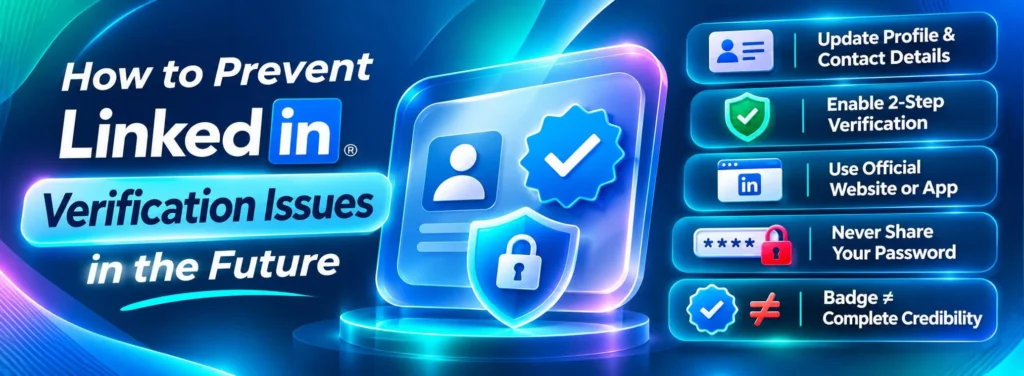
How to Prevent LinkedIn Verification Issues in the Future
Preventing every linkedin verification problem isn’t possible, but maintaining accurate account information and using supported verification methods can reduce avoidable difficulties.
The following practices can help you prepare for future identity or account-security checks.
Keep Your Account Information Updated
Use accurate profile information and maintain access to the email address associated with your account.
Update outdated contact details through LinkedIn’s official settings.
If your legal or professional name changes, review the platform’s guidance before making updates that may affect identity verification.
Strengthen Your Account Security
Enable two-step verification and use a unique password.
Review active sessions and connected applications periodically.
Avoid sharing account credentials or using unauthorized services that perform actions on your behalf.
Strong account security can reduce the risk of unauthorized access, although it doesn’t guarantee that verification will never be required.
Use Official Verification Methods
Always begin linkedin verification through LinkedIn’s official website or application.
Follow the eligibility and document requirements displayed for your specific verification method.
Be cautious of messages promising instant verification, guaranteed approval, or paid shortcuts.
A legitimate verification process should never require you to disclose your password to an unrelated service.
Understand What a Verification Badge Means
A verified profile can help communicate that a particular identity or workplace attribute has been checked through an available verification method.
However, a badge doesn’t guarantee someone’s professional qualifications, honesty, or trustworthiness.
Likewise, an unverified profile isn’t automatically suspicious.
Verification is one trust signal, not a complete assessment of a professional’s credibility.
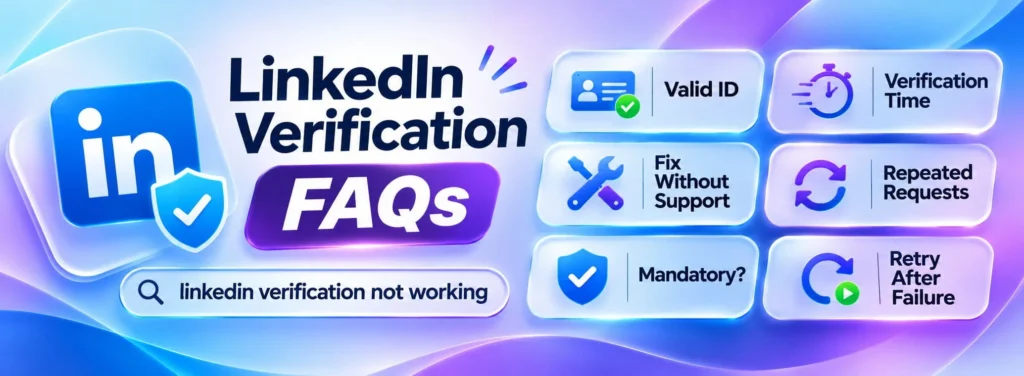
Frequently Asked Questions About LinkedIn Verification
Why Is My LinkedIn Verification Not Working Even With a Valid ID?
If linkedin verification not working continues despite having a valid identification document, check whether that document is supported by the verification provider.
A valid ID isn’t necessarily eligible for every verification method.
Camera problems, identity mismatches, expired sessions, and temporary technical errors can also interrupt the process.
Review the specific instructions before submitting another attempt.
How Long Does LinkedIn Verification Take?
The time required for linkedin verification varies depending on the method, provider, and whether additional review is necessary.
Some checks may be completed quickly, while others require more processing.
LinkedIn doesn’t guarantee one universal completion time for every verification scenario.
Follow any status updates or waiting instructions provided during your verification attempt.
Can I Fix a LinkedIn Verification Problem Without Contacting Support?
Yes, some issues can be resolved independently.
For example, you may be able to fix a linkedin verification problem by enabling camera permissions, updating your browser, using a supported document, or restarting an expired verification session.
However, unresolved eligibility questions, account restrictions, and repeated rejections may require official assistance.
Why Does LinkedIn Keep Asking Me to Verify My Identity?
Repeated verification requests may indicate that a previous attempt wasn’t completed successfully or that LinkedIn requires additional confirmation.
Account-security concerns may also lead to verification requests.
The exact cause depends on your circumstances.
Review the instructions carefully and avoid assuming that repeated requests automatically indicate an account violation.
Is LinkedIn Verification Mandatory for Everyone?
No. Optional profile verification isn’t universally mandatory for every LinkedIn member.
However, identity confirmation may be required in particular account-recovery or security situations.
Verification availability also differs by location, organization, and supported method.
Check the requirements shown in your account rather than relying on instructions intended for another user.
Can I Retry LinkedIn Verification After It Fails?
Retry options depend on the verification method and the circumstances of the failure.
Some processes allow another attempt, while others may require additional instructions or support.
Before retrying, identify what went wrong.
Repeating an unsuccessful submission without correcting the underlying issue may not improve the outcome.
Final Thoughts: Get Your LinkedIn Verification Working Again
Experiencing linkedin verification not working can be stressful, especially when your professional connections or account access depend on completing the process.
Fortunately, many common issues involve document eligibility, camera permissions, inaccurate information, expired sessions, or technical interruptions.
The best approach is to identify your verification method, read the error carefully, and troubleshoot the relevant step instead of repeatedly restarting without a clear reason.
Remember that linkedin verification requirements can vary by country, provider, and account situation.
If standard troubleshooting doesn’t resolve the issue, use LinkedIn’s official support or recovery channels.
By keeping your information accurate, protecting your account, and following supported verification procedures, you can reduce unnecessary complications and make future verification attempts easier.