LinkedIn Verification Code Not Received? 8 Quick Fixes
linkedin verification code not received is a frustrating problem, especially when you’re trying to sign in, verify your email address, or recover access to your LinkedIn account. You request a code, check your inbox or phone, and wait. Nothing arrives.
Sometimes the message appears several minutes later. Other times, the code arrives but expires before you can use it. You might even receive multiple codes and struggle to identify which one is valid.
The problem can happen for several reasons, including incorrect contact information, spam filtering, mobile network delays, temporary security restrictions, or technical issues.
Fortunately, many delivery problems can be resolved without creating another account or contacting an unofficial recovery service.
The first step is understanding which type of verification you’re completing. LinkedIn may send codes for email confirmation, sign-in security, two-step verification, or account recovery. Workplace verification can also involve an email confirmation link rather than a numerical code.
This guide covers eight practical fixes, explains why verification messages sometimes fail, and shows you when to contact LinkedIn Support.
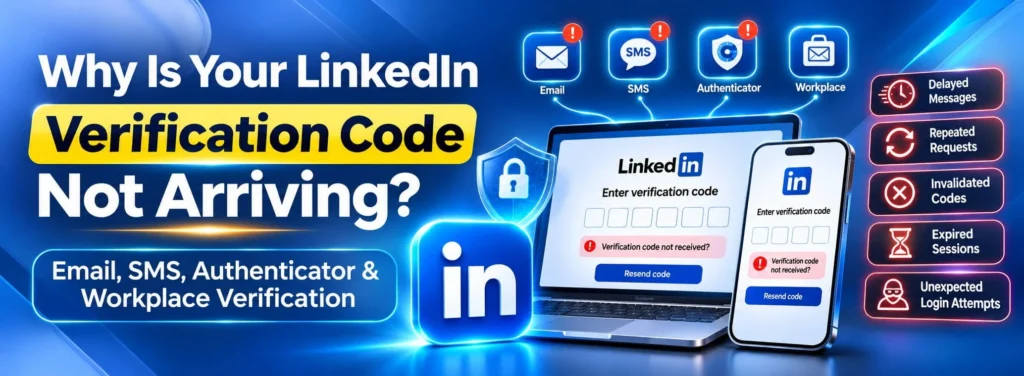
Why Is Your LinkedIn Verification Code Not Arriving?
Before troubleshooting, identify where LinkedIn is supposed to send your verification message.
An email code and an SMS code travel through different systems, so they can fail for different reasons. An authentication app also works differently because it generates codes locally rather than delivering them through email or text messages.
Common Causes of Delivery Problems
The most common reasons include:
- Incorrect or outdated email addresses and phone numbers.
- Verification emails filtered into spam, junk, or quarantine folders.
- SMS messages delayed or blocked by mobile carriers.
- Repeated requests that invalidate earlier codes.
- Expired verification sessions.
- Browser or application problems.
- Temporary security checks or service disruptions.
- Confusion between sign-in codes and workplace verification links.
If you’re not receiving linkedin verification code messages, avoid assuming your account has been hacked. Delivery failures can occur on otherwise secure accounts.
However, unexpected verification messages that you didn’t request deserve attention because someone else may be attempting to access your account.
Identify Your Verification Method First
LinkedIn may ask you to confirm your identity or account access through different methods.
Email verification usually involves a message sent to an address associated with your account. SMS verification uses a registered phone number. Two-step verification may involve an authenticator application or another supported security method.
Workplace verification can require confirmation through an eligible company email account.
Knowing which process you’re completing will help you choose the correct solution.
Fix 1: Check Your Spam, Junk, and Other Email Folders
When linkedin verification code not received appears to be the problem, start with your email folders.
Verification messages don’t always reach the primary inbox. Email providers use automated filters that sometimes classify legitimate messages as promotional, suspicious, or unwanted.
Search Your Entire Mailbox
Open your email account and search for messages from LinkedIn.
Check your spam, junk, promotions, updates, and archived folders.
If you use a company email address, your organization may also have a separate quarantine system that doesn’t appear in your ordinary inbox.
Search using relevant terms such as LinkedIn, verification, security, or confirmation.
Check Your Email Filters
Custom inbox rules can automatically move, archive, or delete messages.
Review any filters you’ve created, especially rules affecting automated notifications.
If a legitimate LinkedIn message was incorrectly filtered, adjust the relevant rule so future messages can reach you.
Confirm the Sender Carefully
Finding a message with LinkedIn branding doesn’t automatically prove it’s genuine.
Scammers can imitate company logos and email layouts.
Check the sender information and avoid suspicious links. When uncertain, open LinkedIn directly rather than following an unexpected email.
What If Your Inbox Is Full?
Some email services may reject incoming messages when storage limits are reached.
Check your mailbox storage and remove unnecessary items if needed.
After restoring normal email delivery, request a fresh verification message through LinkedIn.
Fix 2: Confirm Your Email Address or Phone Number
A surprisingly common reason for not receiving linkedin verification code messages is incorrect contact information.
Even a small typing mistake can send your code somewhere else.
An old phone number or inaccessible email address can create the same problem.
Review Your Email Address
If LinkedIn displays a partially hidden email address, check whether it matches the account you currently use.
For example, an address ending in @gmail.com may look familiar even when it belongs to an older account.
If you can access LinkedIn’s account settings, review your registered email addresses.
Only make changes through the official website or application.
Check Your Phone Number
For SMS verification, confirm that the registered phone number is correct.
Pay attention to the country code.
A missing digit or incorrect country code can prevent messages from reaching the intended device.
If you’ve recently changed numbers, LinkedIn may still be attempting to contact your previous number.
What If You Cannot Access the Registered Contact Method?
Don’t create a second LinkedIn account simply to bypass verification.
Instead, review the available account recovery options.
LinkedIn may offer alternative verification or recovery procedures depending on your circumstances.
If no alternative appears, use official support resources.
Fix 3: Wait Before Requesting Another Verification Code
Repeatedly pressing the resend button can make troubleshooting more confusing.
Some systems invalidate older codes when a new one is generated. Repeated requests may also trigger temporary limits.
If you’re dealing with linkedin verification code not working, requesting several new codes immediately may leave you unsure which one is valid.
Allow Time for Delivery
Email and SMS messages aren’t always delivered instantly.
Network congestion, email processing, or provider delays can affect delivery.
Wait for the period indicated on the verification screen before requesting another message.
Avoid assuming that a code has failed simply because it hasn’t arrived within a few seconds.
Request One Fresh Code
After the appropriate waiting period, use LinkedIn’s official resend option.
Check the correct inbox or phone.
If several codes arrive together, the most recently issued code may be the one you need.
Follow the instructions associated with your active verification session.
Avoid Excessive Attempts
Repeatedly requesting or entering codes can trigger temporary security controls.
If LinkedIn displays a rate-limit warning or asks you to wait, respect that instruction.
There is no reliable shortcut for bypassing legitimate account security measures.
Fix 4: Troubleshoot SMS Delivery Problems
If linkedin verification code not received specifically involves a text message, investigate your phone and mobile network.
SMS delivery depends on your carrier, device settings, and the number registered with LinkedIn.
A phone that receives ordinary messages may still have trouble receiving automated verification texts.
Check Your Mobile Signal
Confirm that your phone has a working cellular connection.
If you’re in an area with weak reception, move somewhere with a stronger signal.
Airplane mode can also interrupt SMS delivery.
Make sure it’s disabled before requesting another code.
Review Blocked Messages
Some phones and messaging applications filter unknown senders or suspected spam.
Check blocked-message folders and spam protection settings.
Automated messages may appear differently from ordinary conversations.
Avoid permanently disabling important security protections just to receive one message.
Contact Your Mobile Carrier
Certain carriers restrict automated messages, short-code messages, or international SMS traffic.
If you consistently fail to receive verification texts from multiple services, your carrier may be able to investigate.
Ask whether automated authentication messages are supported on your number.
Consider Recent Number Changes
If you’ve recently transferred your number between carriers or activated a replacement SIM, messaging services may experience temporary disruptions.
Confirm that ordinary SMS delivery is functioning.
If the problem continues, contact your carrier before repeatedly requesting LinkedIn codes.
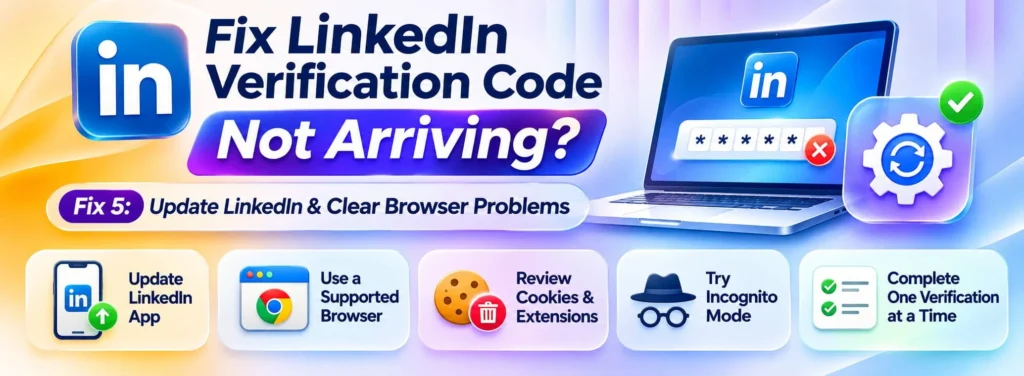
Fix 5: Update LinkedIn and Clear Browser Problems
Sometimes not receiving linkedin verification code messages is actually a verification-session problem.
For example, the message may arrive successfully, but the page requesting the code has stopped responding.
Browser extensions, outdated software, and corrupted session information can interfere with the process.
Update Your LinkedIn Application
If you’re using the mobile app, check whether an update is available.
Install the latest compatible version and restart the application.
Outdated software can sometimes cause sign-in or verification screens to behave unexpectedly.
Try a Supported Browser
If the application isn’t working, try accessing LinkedIn through an updated browser.
Alternatively, if the browser is causing problems, use the official mobile application.
Don’t switch repeatedly between sessions while entering different codes.
Complete one verification attempt at a time.
Review Cookies and Extensions
Privacy extensions, script blockers, and restrictive browser settings can interfere with some authentication flows.
If appropriate, temporarily test the process without an interfering extension.
You may also clear relevant site data, but remember that doing so can sign you out and require another login.
Should You Use Incognito Mode?
A private browsing window can help determine whether stored browser data or extensions are causing a problem.
However, it doesn’t fix email delivery, carrier restrictions, or an incorrect registered contact address.
Use it as a diagnostic step rather than a guaranteed solution.
Fix 6: Solve Expired or Invalid Verification Codes
Sometimes the message arrives, but LinkedIn refuses to accept it. This is a different issue from a missing message, although both can prevent account access.
If linkedin verification code not working appears after entering the numbers, check whether you’re using the correct code for the current session.
Check the Expiration Time
Verification codes are usually valid for a limited period.
If you open an older email or text message, the code may have expired.
Request a fresh code when permitted, then enter it promptly.
Enter the Code Exactly
Copying a code can sometimes introduce unwanted spaces or characters.
If automatic pasting fails, enter the code manually.
Check that you haven’t confused similar-looking characters or copied information from an unrelated message.
Use the Latest Active Session
If you request several codes, earlier ones may no longer be valid.
Avoid opening multiple verification windows simultaneously.
Return to the most recent active session and follow its instructions.
Check Your Authenticator App
If you’re using an authenticator application, ensure your phone’s date and time are synchronized automatically.
Time-based authentication codes depend on accurate device time.
A code generated by an authenticator app isn’t delivered through SMS or email, so checking your inbox won’t resolve that particular problem.
Fix 7: Check for Security Restrictions or Service Issues
If linkedin verification code not received continues despite checking your contact information and device, the issue may involve temporary account security controls or a service disruption.
These situations require a different approach from ordinary delivery problems.
Look for Security Messages
LinkedIn may display additional instructions when unusual account activity is detected.
Read the exact message carefully.
If you’re asked to complete a security review, follow the official process.
Avoid attempting to bypass account restrictions through unofficial tools.
Check Whether LinkedIn Is Experiencing Problems
Occasionally, authentication services experience temporary technical difficulties.
If several verification methods suddenly stop functioning, a service issue may be possible.
Check official LinkedIn support information for relevant updates.
Don’t assume a widespread outage without reliable confirmation.
Stop Repeating Failed Attempts
If LinkedIn instructs you to wait before trying again, follow that guidance.
Repeated attempts may not resolve the underlying issue.
Take note of the error message and the steps you’ve already completed.
This information can be useful if you need support.
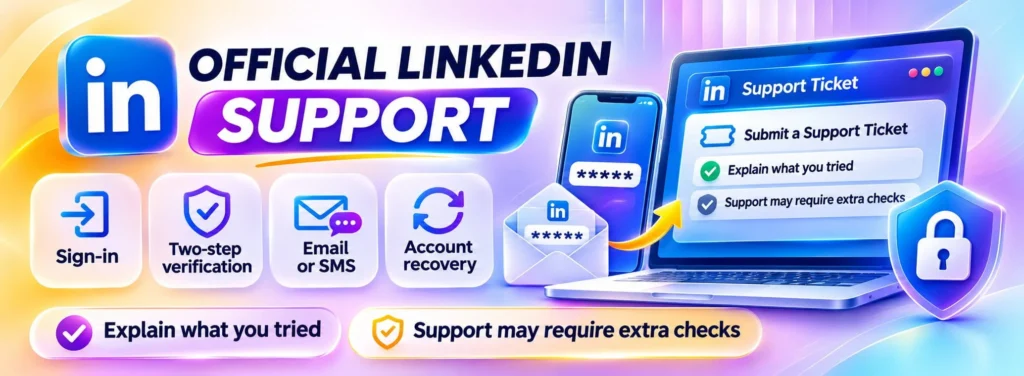
Fix 8: Contact LinkedIn Support Through Official Channels
When not receiving linkedin verification code remains unresolved after basic troubleshooting, official support may be necessary.
This is particularly important if you cannot access your registered email or phone number.
Prepare Your Problem Description
Explain whether you’re trying to sign in, complete two-step verification, confirm an email address, or recover an account.
Mention whether the missing message should arrive through email, SMS, or another method.
Include the exact error message when available.
Explain What You’ve Already Tried
Tell support whether you’ve checked spam folders, verified contact information, tested your mobile connection, and requested another code.
This helps distinguish delivery failures from expired sessions or unsupported verification methods.
Use the Official Help Center
Visit the LinkedIn Help Center and follow the available account access or verification guidance.
If your account is restricted, use the recovery instructions associated with the restriction notice.
Never send your password, authentication codes, or identity documents to an unofficial support account.
Can Support Guarantee Immediate Access?
No. Recovery may require additional checks, and the available options depend on your account circumstances.
Support cannot necessarily bypass security requirements simply because you need urgent access.
LinkedIn Verification Code Not Working After Delivery?
The phrase linkedin verification code not working can describe several different errors.
Understanding the message displayed on your screen can help you choose the correct next step.
| Error or symptom | Possible explanation | Recommended action |
| Invalid code | Incorrect or superseded code | Use the latest code from the active session |
| Expired code | Code validity period ended | Request a fresh code when allowed |
| Too many attempts | Temporary security limit | Follow the displayed waiting instructions |
| Page keeps loading | Browser or connection issue | Check connectivity and update your browser |
| Code accepted, then rejected | Session mismatch or interruption | Restart the authorized process if permitted |
| No message arrives | Delivery or contact information problem | Review email, SMS, and registered details |
Why Copying the Code May Fail
A copied code can contain invisible spaces, especially when selected from a formatted email.
Try entering the characters manually.
If that doesn’t work, confirm that the message belongs to your current verification attempt.
Why an Older Code Stops Working
A previously issued code may become invalid after another request.
This is a normal security measure in many authentication systems.
Avoid keeping multiple verification sessions open.
Not Receiving LinkedIn Verification Code on Email vs. SMS
When not receiving linkedin verification code becomes a recurring problem, comparing the two delivery methods can help identify the source.
Email delivery depends on your mailbox, provider filters, and registered address. SMS delivery depends on your phone number, carrier, and messaging settings.
Email Troubleshooting Priorities
Start by checking spam folders and searching your entire mailbox.
Confirm that your registered address is correct.
If you’re using a corporate inbox, ask whether your organization blocks automated messages.
SMS Troubleshooting Priorities
Check your cellular signal, blocked messages, and country code.
If you’re traveling internationally, confirm that your mobile service can receive relevant texts.
Your carrier may need to investigate persistent automated-message delivery failures.
Which Method Is More Reliable?
Neither method is universally more reliable in every situation.
Email can be affected by filtering, while SMS can be affected by network and carrier restrictions.
Use the supported security methods available to your account and keep your recovery information current.
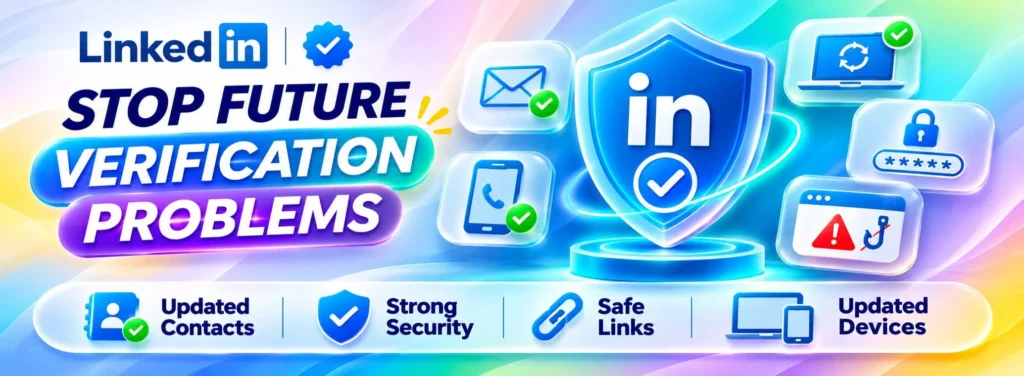
How to Prevent Future LinkedIn Verification Problems
Resolving linkedin verification code not received is important, but preventing the same issue can save time later.
A few account maintenance habits can reduce avoidable login interruptions.
Keep Contact Details Updated
Review your registered email addresses and phone numbers periodically.
Remove outdated information when appropriate.
Make sure you can access the contact methods LinkedIn uses for security.
Strengthen Account Security
Use a strong, unique password and enable an available two-step verification method.
Consider using a reputable password manager.
Never share authentication codes, even with someone claiming to represent LinkedIn support.
Avoid Suspicious Verification Links
Phishing messages may claim that your account will be deleted unless you verify immediately.
Instead of trusting the link, open LinkedIn directly.
If you receive a code you didn’t request, don’t enter it into an unfamiliar website or share it with anyone.
Keep Your Devices Updated
Install relevant security updates for your operating system, browser, and LinkedIn application.
Maintaining updated software can reduce compatibility problems and protect your account.
Frequently Asked Questions About LinkedIn Verification Codes
Why Is My LinkedIn Verification Code Not Received?
If linkedin verification code not received is your problem, check the registered contact method, spam folders, mobile signal, and any delivery restrictions. Wait for the permitted resend interval before requesting another code.
Why Am I Not Receiving LinkedIn Verification Code Messages?
If you’re not receiving linkedin verification code messages, your email provider or mobile carrier may be delaying them. An incorrect contact address or temporary security restriction may also be involved.
Why Is My LinkedIn Verification Code Not Working?
When linkedin verification code not working appears, the code may be expired, entered incorrectly, or associated with an older session. Request a fresh code when allowed and complete the current verification attempt.
Can I Verify LinkedIn Without an SMS Code?
Possibly. Available alternatives depend on your account settings and the verification process. Check whether LinkedIn offers another supported sign-in or recovery method.
How Long Should I Wait for a LinkedIn Code?
There is no guaranteed delivery time for every message. Follow the resend interval displayed by LinkedIn, and avoid repeatedly requesting codes.
What If My LinkedIn Verification Code Is Not Working After Multiple Attempts?
If linkedin verification code not working continues, stop repeated attempts, review the exact error, and use official support if necessary.
Final Thoughts
A linkedin verification code not received error doesn’t automatically mean your account is compromised or permanently inaccessible.
Most importantly, identify whether you’re experiencing an email delivery problem, an SMS issue, an expired code, or a security-related restriction.
If you’re not receiving linkedin verification code messages, start with your contact details and delivery settings before attempting more complicated solutions.
If the message arrives but fails, investigate whether the code is expired or belongs to an earlier session.
Following the eight fixes above can help you identify common causes and choose an appropriate next step without compromising your account security.