LinkedIn Premium Refund: How to Get Your Money Back
linkedin premium refund is one of the most common concerns among users who have purchased a paid LinkedIn membership and later decided that the service was not worth the cost. Perhaps you accidentally forgot to cancel a free trial, received an unexpected renewal charge, purchased the wrong subscription, or simply did not use the Premium features as much as you expected.
Whatever happened, getting your money back may be possible, depending on when you were charged, how you purchased the subscription, and whether you used the paid features.
The good news is that LinkedIn has an official refund policy for eligible Premium subscriptions. However, there are specific conditions you need to understand before submitting a request. Simply cancelling your membership does not automatically return the money to your payment method.
In this guide, we will explain the complete refund process, including eligibility requirements, desktop instructions, iPhone and Android purchases, free trial charges, and unexpected payments. You will also learn how to contact support, what information to provide, and what to do if your initial request is rejected.
Our goal is to help you understand your options and follow the correct process without wasting time.
1. Understanding LinkedIn Premium’s Refund Policy
Before submitting a refund request, you should understand how LinkedIn handles Premium subscription payments.
LinkedIn offers different paid memberships, including Premium Career, Premium Business, Premium All-in-One, LinkedIn Learning, Recruiter Lite, and Sales Navigator.
Although these products have different purposes, LinkedIn’s published refund policy covers several of these subscription types.
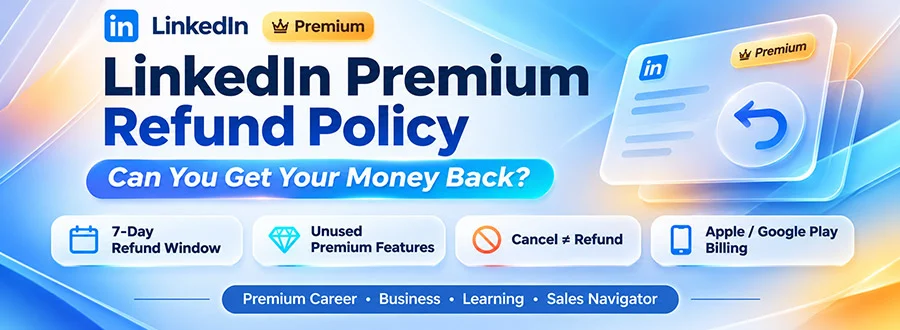
According to its official policy, eligible Premium subscriptions may be refundable within seven days from the date of the subscription charge, provided that Premium features have not been used.
This is an important condition because the refund decision depends on more than simply requesting your money back.
1.1 The Seven-Day Refund Window
LinkedIn’s standard refund policy provides a seven-day window from the date of the subscription charge.
To qualify under this general policy, you must meet the applicable conditions, including not having used Premium features during the relevant period.
For example, imagine that you purchased Premium Career on November 10 and realized on November 12 that you did not need the subscription.
If you have not used Premium features, you may be eligible to request a refund within the seven-day window.
However, if you have already used InMail credits, accessed Premium insights, or used other paid features, your eligibility may be affected.
The important distinction is that being within seven days does not automatically guarantee approval.
LinkedIn reviews refund requests according to its policy, account history, and applicable consumer protection requirements.
1.2 Does Everyone Qualify for a Refund?
No.
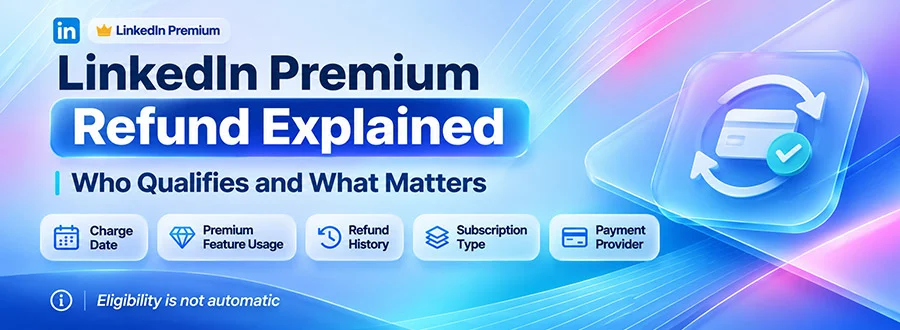
Your eligibility depends on several factors:
- The date of your subscription charge.
- Whether you used Premium features.
- Your previous refund history.
- The subscription type.
- Your payment provider.
- The consumer protection laws applicable to your location.
LinkedIn also states that previous refunds may affect eligibility.
This means someone who received a refund for an earlier subscription may not necessarily qualify for another request under the same conditions.
1.3 What Happens After You Cancel?
Cancellation and refunds are two separate processes.
When you cancel an active paid membership, your Premium features generally remain available until the end of the current billing period.
However, cancellation alone does not mean that LinkedIn will return the payment you already made.
If you want your money back, you need to submit a separate refund request through the appropriate payment channel.
You should therefore complete both steps when necessary: stop future renewal and request a refund for the eligible charge.
2. Who Can Request a LinkedIn Premium Refund?
Not every person who cancels a membership needs a refund, but several situations may justify contacting support.
Understanding which situation applies to you will help you choose the right explanation when submitting your request.
2.1 Accidental Subscription Purchase
Sometimes users purchase Premium without fully understanding the subscription conditions.
You might have clicked the wrong plan, misunderstood the trial offer, or completed a purchase while exploring the available features.
If the purchase was recent and you have not used the paid benefits, you may meet the standard eligibility conditions.
Explain what happened clearly and provide the original transaction date.
2.2 Forgotten Free Trial Cancellation
Free trials are convenient, but they can become expensive when users forget the renewal date.
For example, you activate a trial to explore LinkedIn Learning or additional job-search features. You stop using the service after a few days but forget that the trial automatically converts into a paid subscription.
When the charge appears, you may be surprised.
In this situation, review the charge date and whether you used Premium features. If you meet LinkedIn’s conditions, submit a request promptly.
Do not assume that every forgotten trial charge qualifies for a refund.
2.3 Unexpected Automatic Renewal
LinkedIn subscriptions renew at the end of their selected billing cycle unless cancelled according to the applicable terms.
A user might believe that a membership was cancelled when the cancellation process was never completed.
Alternatively, they may have forgotten that an annual subscription was approaching renewal.
If you receive an unexpected renewal charge, check your subscription status first.
If the payment is recent and you have not used the renewed Premium benefits, you may have grounds to request a refund under the applicable policy.
2.4 Purchased the Wrong Premium Plan
LinkedIn offers multiple subscription options, and each serves a different professional purpose.
You might have intended to purchase Premium Career but accidentally selected Premium Business.
If you recognize the mistake quickly, review the refund conditions and contact LinkedIn support.
Clearly explain which plan you intended to purchase and which one was charged.
2.5 Duplicate or Incorrect Charges
If you notice multiple charges that appear to relate to the same subscription, investigate them immediately.
Check your billing history, payment receipts, and subscription status.
A duplicate charge, an unfamiliar transaction, and an ordinary renewal are different situations.
Provide the relevant transaction details when contacting support so the payment can be investigated.
3. How to Check Whether Your Subscription Is Eligible
Before requesting a refund, gather the necessary information.
This makes the process easier and helps you avoid submitting an incomplete request.
3.1 Find Your Original Payment Date
The first thing to check is when the subscription charge occurred.
You can usually find this information in your LinkedIn billing history, payment receipt, or bank statement.
If Apple or Google processed your payment, check the corresponding purchase history.
Make sure you use the actual charge date rather than the date you first downloaded the LinkedIn application.
3.2 Check Your Premium Usage
The next step is to review whether you used the paid features.
Think about whether you:
- Sent InMail messages.
- Accessed additional profile insights.
- Used Premium job-search information.
- Viewed Premium-only content.
- Completed LinkedIn Learning activities.
- Used other paid membership benefits.
LinkedIn’s standard seven-day refund condition specifically refers to subscriptions without Premium usage.
Do not claim that you have not used Premium if you have already accessed its paid features.
Providing accurate information is important when requesting a refund.
3.3 Identify Your Payment Provider
This is particularly important because LinkedIn does not process every subscription payment directly.
Your purchase may have been handled by:
LinkedIn: You paid directly through the LinkedIn website or mobile web checkout.
Apple: You subscribed using Apple’s in-app purchase system.
Google Play: You completed the purchase through the Android application using Google Play billing.
The payment provider determines where you should submit the request.
3.4 Review Your Previous Refund History
LinkedIn indicates that previous refunds may affect eligibility.
If you have previously requested money back for another Premium membership, keep that information in mind.
You can still contact support if you believe a new transaction qualifies, but approval is not guaranteed.
4. How to Request a Refund Through LinkedIn
If you purchased your subscription directly from LinkedIn, you can use the official refund process.
This is the appropriate route for eligible purchases billed directly by LinkedIn.
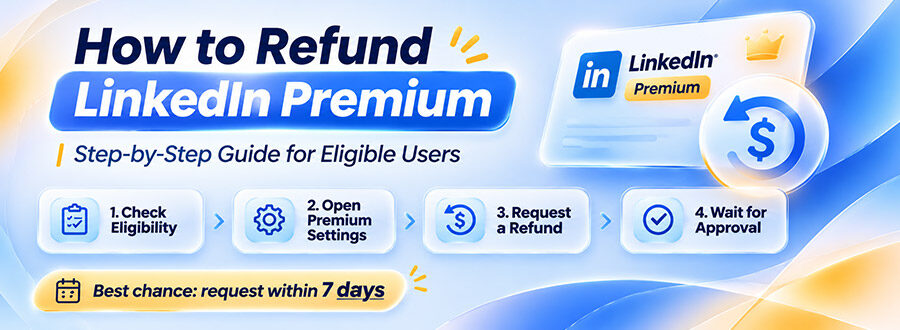
Step 1: Sign In to Your LinkedIn Account
<AsyncImage query=”LinkedIn desktop website homepage profile menu screenshot” aspectRatio=”16:9″ width=”100%”/>
Visit https://www.linkedin.com and sign in using the account associated with the paid membership.
If you have multiple LinkedIn accounts, make sure you select the one that received the charge.
Step 2: Open Your Premium Account Settings
Click your profile picture or Me icon in the top navigation bar.
Select Premium features from the dropdown menu.
Open the Manage your subscription option under Plan details.
This takes you to the Premium management area.
Step 3: Review Your Purchase Information
<AsyncImage query=”LinkedIn Premium Manage subscription Admin Center Purchases screenshot” aspectRatio=”16:9″ width=”100%”/>
In the subscription management area, open Purchases.
Review the available subscription information and identify the relevant purchase.
Check the plan name, transaction details, and billing information.
Step 4: Find the Official Refund Option
LinkedIn provides an official refund request process through its Help Center.
Open the official refund policy page:
https://www.linkedin.com/help/linkedin/answer/a1337140
Review the eligibility information and select the available Request a Refund option when applicable.
You may be directed to the relevant support or refund request process.
Step 5: Submit Your Request
Provide the requested information accurately.
You may need to explain:
- Which Premium plan you purchased.
- When you were charged.
- Why you are requesting a refund.
- Whether you used any Premium features.
- Whether the charge was accidental or unexpected.
Keep your explanation short, factual, and specific.
Step 6: Wait for the Decision
After submitting your request, monitor your LinkedIn account and registered email address.
If support requests additional information, respond through the appropriate channel.
A submitted request does not mean that a refund has already been approved.
Wait for an official decision before assuming the money will be returned.
5. How to Cancel LinkedIn Premium and Get Refund
Many users search for cancellation instructions when their real concern is recovering money from a recent subscription payment.
It is important to understand that these are two separate actions.
Cancellation prevents future subscription renewal, while a refund request asks the payment provider to return an eligible previous charge.
If you want to stop future billing and recover an eligible recent payment, complete the appropriate processes.
5.1 Cancel a Direct LinkedIn Subscription
For subscriptions purchased directly through LinkedIn:
- Sign in to your LinkedIn account.
- Open Me from the homepage.
- Select Premium features.
- Choose Manage your subscription.
- Open Purchases in the Admin Center.
- Select your active subscription.
- Choose Cancel subscription.
- Follow the prompts.
- Confirm the cancellation.
Afterwards, use the official refund request process if your purchase meets the eligibility conditions.
5.2 Why You Should Complete Both Actions
Imagine that you purchased a monthly Premium membership and received a charge yesterday.
You decide that you do not want to continue using the service.
If you only request a refund but leave the subscription active, future renewal may still occur depending on the status of your membership.
Similarly, if you only cancel, you may stop future payments without receiving the previous charge back.
Therefore, verify both your cancellation status and your refund request separately.
5.3 Does Cancellation Guarantee a Refund?
No.
Cancelling a subscription does not automatically make the previous payment refundable.
LinkedIn evaluates refund requests under its official policy and any applicable local consumer protection rules.
You should not assume that unused time, unused InMail credits, or a decision to stop using Premium automatically qualifies you for a refund.
6. How to Request a Refund for an Apple App Store Subscription
If you purchased LinkedIn Premium through the Apple App Store, the refund process is different.
LinkedIn’s official policy states that iOS purchases must be handled by Apple for cancellation and refund purposes.
This means you should not expect LinkedIn to directly return an App Store payment.
Step 1: Visit Apple’s Refund Website
<AsyncImage query=”Apple Report a Problem request refund website screenshot” aspectRatio=”16:9″ width=”100%”/>
Open:
Sign in using the Apple Account associated with your LinkedIn purchase.
Step 2: Select Request a Refund
Find the purchase management options.
Select the option labelled I’d like to and choose Request a refund.
Step 3: Choose a Reason
Apple will ask why you want the money returned.
Select the reason that most accurately describes your situation.
For example, you may have purchased the wrong subscription or received an unexpected charge.
Do not select a reason that does not match what happened.
Step 4: Select the LinkedIn Purchase
Find the relevant LinkedIn transaction in your purchase history.
Select the subscription payment you want Apple to review.
Step 5: Submit the Request
Complete the required information and submit the request.
Apple will review the application and provide an update.
According to Apple Support, you can generally check the status after submitting your request, and an update may take approximately 24–48 hours.
Approval is not guaranteed, and the time required for the money to return may be longer.
6.1 What If the LinkedIn Purchase Is Missing?
If you cannot find the transaction, check whether you are signed in with the correct Apple Account.
Search your email for an Apple receipt.
If you have multiple Apple Accounts, check each account that may have been used for the original purchase.
Apple also recommends checking whether a charge is still pending. A pending transaction may not yet be available for a refund request.
7. How to Request a Refund Through Google Play
Android users who purchased LinkedIn Premium through Google Play should use the Google Play refund process.
Google reviews refund requests according to its policies and applicable regional requirements.
Step 1: Open Google Play
<AsyncImage query=”Google Play Store Android profile payments and subscriptions screenshot” aspectRatio=”16:9″ width=”100%”/>
Visit or open the Google Play Store application.
Sign in using the Google Account associated with the original purchase.
Step 2: Open Your Purchase History
On the website, click your profile picture and navigate to Payments and subscriptions.
Open Budget and order history.
On supported devices, you can also review the purchase through the Play Store application.
Step 3: Locate the LinkedIn Payment
Find the transaction associated with your Premium subscription.
Check the purchase date and amount to make sure you select the correct payment.
Step 4: Select Report a Problem
Choose Report a problem for the relevant transaction.
Select the reason that best describes your situation.
Step 5: Explain Why You Want a Refund
Provide a short explanation of what happened.
Mention whether the payment was accidental, unexpected, or related to a subscription you no longer intended to continue.
Step 6: Submit Your Request
Complete the form and submit it to Google.
Google may take approximately one to four days to make a decision, depending on the purchase and circumstances.
If the transaction is not eligible through Google Play, you may also need to contact LinkedIn support about the purchase.
8. What If You Were Charged After a Free Trial?
An unexpected charge after a free trial is one of the most common reasons people contact subscription support.
LinkedIn Premium trials are generally designed to convert into paid memberships when the trial period ends, unless cancelled according to the displayed terms.
This means that forgetting to cancel before the deadline can result in an automatic subscription payment.
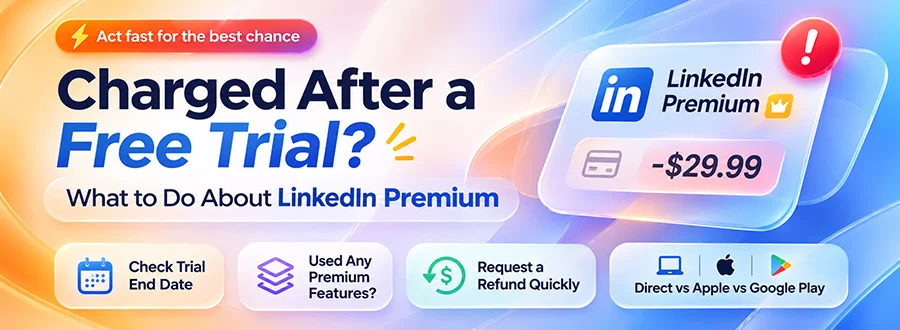
8.1 Check the Trial Expiration Date
First, identify when your trial ended.
Look for the original subscription confirmation email and any reminder messages.
LinkedIn states that it sends an email reminder before a free Premium trial ends for subscriptions purchased directly through its desktop website.
However, you should not depend entirely on receiving a reminder.
Check your subscription information yourself.
8.2 Check Whether Premium Features Were Used
Review your activity during the relevant period.
If you did not use Premium features after the charge, you may have a stronger basis for requesting a refund under LinkedIn’s general seven-day policy.
However, eligibility still depends on the complete policy and your account history.
8.3 Submit a Request Quickly
If you believe the trial conversion was accidental, contact the relevant billing provider promptly.
Explain that you intended to use the trial temporarily and did not intend to continue with the paid membership.
Be honest about when you noticed the charge and whether you used the service.
8.4 Can You Get Your Money Back After Forgetting to Cancel?
Possibly.
A forgotten cancellation does not automatically disqualify you from requesting a refund.
However, the approval decision depends on the payment provider’s rules, the usage conditions, and any applicable consumer rights.
9. Special Refund Rights Depending on Your Country
LinkedIn’s general refund policy is not the only consideration.
Consumer protection laws in certain countries provide additional rights that may be different from the standard seven-day policy.
This is important because a subscription purchased in one country may have different refund conditions from a subscription purchased in another.
9.1 European Union
LinkedIn’s official policy states that consumers in the European Union are entitled to a full refund during the 14 days after a subscription begins, subject to the applicable rules.
An important detail is that the 14-day period begins when the subscription service starts.
If you activated a free trial, this period begins on the first day of the trial rather than the day the first paid charge appears.
Therefore, the standard refund calculation may be different for trial users.
9.2 Denmark and the Netherlands
LinkedIn’s published policy identifies additional arrangements for consumers in Denmark and the Netherlands.
The subscription is cancelled with one month’s notice, and eligible remaining subscription time is refunded according to the applicable terms.
9.3 Germany
LinkedIn also describes specific arrangements for consumers in Germany.
These include cancellation with one month’s notice and a refund for eligible remaining subscription time, subject to the stated exceptions.
The first year of an annual subscription is excluded from the described remaining-period refund arrangement.
9.4 India
LinkedIn’s policy includes a specific rule for certain Indian subscriptions involving withholding tax.
Refund requests for those subscriptions must be submitted within 180 days from the beginning of the subscription.
9.5 Bangladesh and Other Countries
If you live in Bangladesh or another country not specifically mentioned in the examples above, check the applicable LinkedIn policy and local consumer protection laws.
Do not assume that the European Union’s 14-day rights automatically apply worldwide.
The correct approach is to review the terms relevant to your billing country and payment provider.
10. What to Do If LinkedIn Rejects Your Refund Request
Receiving a rejection can be frustrating, especially when you believe the charge was accidental.
However, a rejected request does not always mean that there is nothing else you can do.
First, understand why the request was declined.
10.1 Review the Rejection Reason
Check whether the response mentions:
- Premium feature usage.
- The refund request being outside the allowed period.
- Previous refund history.
- An unsupported payment method.
- An incorrect subscription account.
- Missing transaction information.
Understanding the reason will help you decide what to do next.
10.2 Contact Customer Support
If you believe the decision was based on incorrect information, contact LinkedIn support.
Explain the situation and provide the original transaction details.
Keep your message factual and avoid submitting multiple requests containing conflicting information.
10.3 Provide Supporting Evidence
Useful evidence may include:
- Original payment receipt.
- Subscription confirmation email.
- Billing statement.
- Cancellation confirmation.
- Screenshot of the subscription status.
- Relevant communication with customer support.
Do not send complete card numbers, passwords, or other sensitive payment credentials.
Only provide the information requested through official support channels.
10.4 Contact Your Payment Provider When Appropriate
If the charge was processed by Apple or Google, follow their respective dispute and refund processes.
For an unauthorized payment, contact your bank or payment provider and report the transaction using its official procedure.
A payment dispute should not be used simply because you changed your mind about an authorized purchase.
Explain the actual circumstances accurately.
11. Common Mistakes That Can Delay a Refund
Many users make avoidable mistakes when requesting money back from a subscription.
Understanding these issues can make the process more efficient.
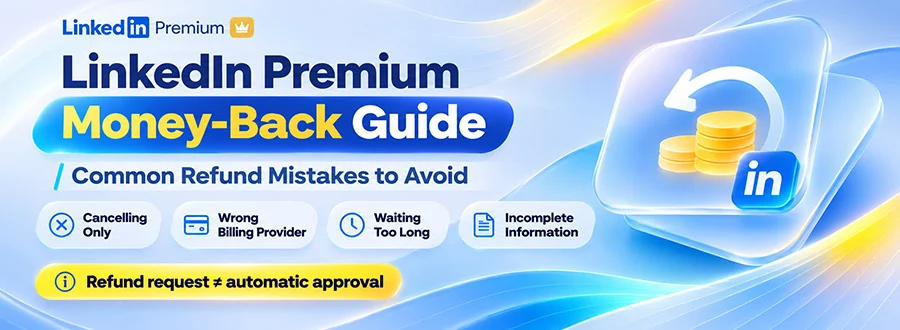
11.1 Cancelling Without Requesting a Refund
This is probably the most common misunderstanding.
Cancelling prevents future renewal, but it does not automatically return a previous payment.
If you believe you qualify, submit a separate refund request.
11.2 Contacting the Wrong Company
If Apple processed your payment, LinkedIn cannot directly issue the App Store refund.
If Google Play processed the payment, you should review Google’s refund process.
Always identify the billing provider before submitting a request.
11.3 Waiting Too Long
LinkedIn’s standard refund policy uses a seven-day window from the date of the subscription charge for eligible unused Premium memberships.
Waiting several weeks may reduce your chances of qualifying under that general policy.
Act promptly after discovering an unexpected payment.
11.4 Giving Incomplete Information
A message such as “I want my money back” does not explain what happened.
Provide the subscription name, charge date, payment provider, and reason for the request.
Clear information makes it easier for support to understand your situation.
11.5 Assuming Every Unused Subscription Is Refundable
Not using a subscription for several months does not automatically make the previous payments refundable.
The seven-day condition, usage requirements, regional rules, and previous refund history all matter.
12. Frequently Asked Questions About LinkedIn Refunds
Can I get a refund for LinkedIn Premium?
Yes, eligible Premium subscriptions may be refundable within seven days of the charge if Premium features have not been used. Previous refunds and applicable local rules may affect eligibility.
How long does a LinkedIn refund take?
The processing time depends on the payment provider and review process. LinkedIn, Apple, and Google may follow different timelines. Apple generally provides an initial update within 24–48 hours, while Google Play refund decisions may take approximately one to four days.
Can I get a refund after cancelling LinkedIn Premium?
Yes, if the original payment meets the applicable refund requirements. Cancellation and refund requests are separate processes, so you may need to complete both.
Does LinkedIn refund annual subscriptions?
Annual subscriptions may be eligible under the official refund policy, subject to the seven-day and unused-feature conditions. Certain countries also have additional consumer protection rights.
Can I get a refund if I forgot to cancel my free trial?
You can submit a request if you were charged after a trial ended. Approval depends on the payment provider, the timing, feature usage, and applicable terms.
Can I request a refund from LinkedIn on an iPhone?
If Apple processed the purchase, you must request the refund through Apple. If LinkedIn billed you directly through its website, use LinkedIn’s refund process.
Will cancelling Premium delete my LinkedIn profile?
No. Your profile, connections, and basic account information remain available after your Premium membership ends.
Can I get a refund if I used InMail credits?
Using Premium features may affect your eligibility under LinkedIn’s standard seven-day refund policy. You can still review any additional consumer rights that apply to your location.
What if I was charged twice?
Check your purchase history and payment statements. If you identify a duplicate transaction, contact the payment provider and provide both transaction records.
Does LinkedIn automatically refund unused subscription time?
No. Unused time does not automatically guarantee a refund. Eligibility depends on LinkedIn’s policy and the consumer protection rules applicable to your purchase.
Conclusion
Getting money back from a subscription requires understanding the refund conditions and using the correct payment channel.
LinkedIn’s standard policy provides a potential refund opportunity within seven days of the subscription charge when Premium features have not been used. However, this is not an automatic guarantee, and previous refund history may affect eligibility.
If you purchased through LinkedIn, use its official refund request process. If Apple or Google processed your payment, follow the appropriate platform’s refund procedure.
Most importantly, do not confuse cancelling a membership with receiving a refund. Stop future renewal, submit a separate request when eligible, and keep your payment and cancellation records.
By acting quickly, providing accurate information, and following the correct procedure, you can give your request the best possible chance of being reviewed fairly.