How to Cancel LinkedIn Premium in 2 Minutes
how do you cancel linkedin premium without accidentally getting charged for another month? If you subscribed to LinkedIn Premium for job searching, professional networking, or accessing additional features, you might eventually decide that the membership is no longer worth the cost. Perhaps you found a job, finished your free trial, or simply do not use the paid features enough to justify the recurring payment. how do you cancel linkedin premium, follow a few simple steps to stop your subscription
Whatever your reason, cancelling your subscription is relatively straightforward once you know where to find the correct settings. The confusing part is that LinkedIn uses different cancellation methods depending on how you originally purchased your membership.
For example, a subscription purchased directly through LinkedIn may need to be cancelled through your LinkedIn account, while an Apple App Store subscription can be managed through your iPhone. Google Play subscriptions have their own management options.
This guide explains the complete process step by step, including desktop, Android, and iPhone instructions. You will also learn what happens after cancellation, how to avoid another payment, what happens to your free trial, and how to check whether your subscription has actually ended.
Whether you are using Premium Career, Premium Business, or another eligible LinkedIn membership, the following instructions will help you manage your subscription correctly. how do you cancel linkedin premium, learn how to cancel your membership easily.
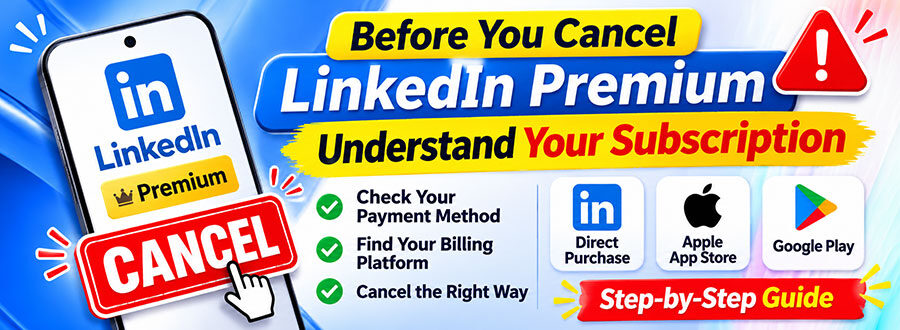
1. Before You Cancel LinkedIn Premium: Understand Your Subscription
Before opening your account settings, take a moment to understand how your membership is billed.
This is important because the cancellation method depends on the original payment channel. Simply deleting the LinkedIn application, logging out, or removing your payment card does not automatically terminate an active subscription.
LinkedIn offers several paid products, including:
- Premium Career
- Premium Business
- Premium All-in-One
- Sales Navigator
- Recruiter Lite
- LinkedIn Learning
Although these subscriptions have different purposes, their billing and cancellation processes follow similar principles.
1.1 Check Where You Purchased Your Membership
There are three common ways to purchase LinkedIn Premium.
Direct purchase through LinkedIn: You purchased your membership through the LinkedIn desktop website or mobile browser. LinkedIn manages the subscription and its billing.
Apple App Store purchase: You subscribed using the LinkedIn application on your iPhone or iPad and completed payment through Apple.
Google Play purchase: You subscribed through the LinkedIn Android application using Google Play billing.
These differences matter because cancelling through the wrong platform may not stop future payments.
For example, if Apple handles your subscription payment, cancelling a membership through an unrelated payment setting on the LinkedIn website may not be the correct procedure.how do you cancel linkedin premium, find the easiest way to end your paid plan.
1.2 How to Identify Your Payment Method
If you cannot remember how you subscribed, check your payment history.
For Apple purchases, open your Apple account purchase history or search your email for an Apple subscription receipt.
For Google Play purchases, review your Google Play order history and subscription list.
For direct LinkedIn purchases, check the billing information associated with your LinkedIn Premium account.
You can also review your bank or card statement to identify the billing provider.
Once you know which platform manages your payment, choose the matching cancellation method below.
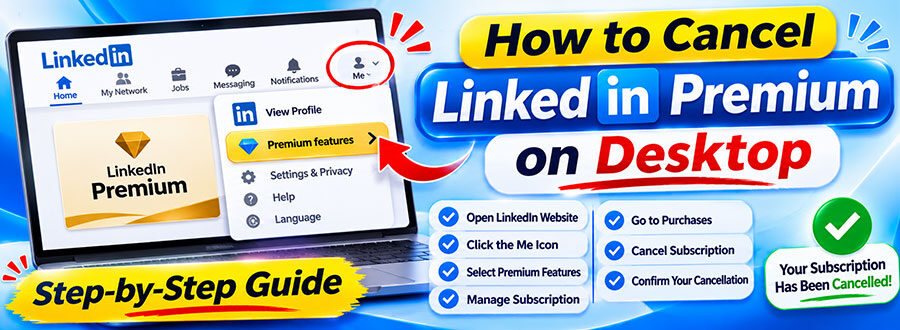
2. How to Cancel LinkedIn Premium on Desktop
Cancelling directly through the LinkedIn website is one of the most straightforward methods.
This method is appropriate if you originally purchased Premium through LinkedIn’s desktop website or mobile web checkout.
The current cancellation process takes you through the LinkedIn Premium management area and then into the account’s purchase settings.
Step-by-Step Desktop Instructions
<AsyncImage query=”LinkedIn desktop website Me profile dropdown Premium features menu screenshot” aspectRatio=”16:9″ width=”100%” />
Step 1: Open LinkedIn
Visit https://www.linkedin.com and sign in using the account associated with your paid membership.
Make sure you are using the correct account if you have multiple LinkedIn profiles.
Step 2: Click the Me Icon
Look at the top navigation bar of your LinkedIn homepage.
Click your profile picture or the Me icon.
A dropdown menu will appear containing different account and profile options.
Step 3: Select Premium Features
Find Premium features in the dropdown menu and click it.
This opens the Premium section, where you can review your membership benefits and subscription information.
Step 4: Open Manage Subscription
Under Plan Details, find Manage subscription.
Click this option to access the LinkedIn Admin Center, where your subscription purchases are managed.
Step 5: Select Purchases
Look at the left-hand navigation panel in the Admin Center.
Click Purchases and locate your active subscription.
If you have multiple eligible purchases, make sure you select the correct one.
Step 6: Choose Cancel Subscription
Under the Actions section, select Cancel subscription.
LinkedIn may display additional information about your membership and ask why you want to leave.
Step 7: Confirm Your Cancellation
Follow the cancellation prompts and click Confirm cancel when requested.
Do not close the browser before completing the final confirmation.
<AsyncImage query=”LinkedIn Premium Admin Center purchases active subscription cancel subscription settings screenshot” aspectRatio=”16:9″ width=”100%” />
How to Know If It Worked
After completing the process, review your subscription status.
Look for a cancellation confirmation or an indication that your membership is scheduled to end.
You should also check your email for any confirmation message from LinkedIn.
Keep a screenshot or copy of the confirmation for your records, especially if your next billing date is approaching.
The most important thing is to make sure that the subscription is marked as cancelled rather than simply showing that you visited the cancellation page. how do you cancel linkedin premium, manage your subscription without any hassle
3. How to Cancel LinkedIn Premium on the Mobile App
You do not always need a computer to manage your membership.
LinkedIn provides subscription management options through its mobile application on supported devices.
The exact available options depend on how your subscription was purchased.
Step-by-Step Mobile Instructions
Step 1: Open the LinkedIn App
Launch LinkedIn on your smartphone.
Sign in to the account that has the active Premium membership.
Step 2: Tap Your Profile Picture
Tap your profile picture in the application interface.
This opens your account menu.
Step 3: Select Premium Features
Find Premium features and tap the option.
You should now see information about your paid membership.
Step 4: Tap Manage Your Subscription
Select Manage your subscription.
LinkedIn will redirect you to the relevant Premium account management page.
Step 5: Choose Cancel Subscription
Find the cancellation option and follow the instructions displayed on the screen.
Step 6: Complete the Confirmation
Review any final messages and confirm your decision.
Make sure you receive confirmation before leaving the application.
Important Note for iPhone Users
The mobile cancellation process is not identical for every iPhone subscription.
If you purchased your membership through Apple’s App Store, you can use the LinkedIn application on your Apple device to manage the subscription.
However, if you purchased Premium through LinkedIn’s mobile website while using an iPhone, LinkedIn processes the payment directly. In that situation, the cancellation must be completed through the LinkedIn desktop website rather than the iOS application. how do you cancel linkedin premium, stop automatic payments in just a few steps.
This distinction is important because using the wrong method can prevent you from reaching the correct billing settings.
4. How to Cancel LinkedIn Premium on iPhone
Many iPhone users subscribe to LinkedIn Premium through the Apple App Store.
When Apple manages the payment, the subscription is connected to your Apple Account rather than being managed exclusively through LinkedIn’s website.
If that applies to you, you can use Apple’s subscription settings to manage the billing.
Step-by-Step iPhone Instructions
<AsyncImage query=”Apple iPhone iOS Settings Apple Account Subscriptions screen screenshot” aspectRatio=”16:9″ width=”100%” />
Step 1: Open iPhone Settings
Unlock your iPhone and open the Settings application.
Step 2: Tap Your Apple Account
At the top of the Settings screen, tap your name or Apple Account profile.
This opens your Apple account information.
Step 3: Select Subscriptions
Find and tap Subscriptions.
You will see a list of active and previously purchased subscriptions associated with your Apple Account.
Step 4: Find LinkedIn
Look through the subscription list and select LinkedIn if it appears.
Make sure you are selecting the correct subscription rather than another application.
Step 5: Tap Cancel Subscription
Open the LinkedIn subscription details and tap Cancel Subscription.
If the option is missing, your membership may already be cancelled or may not be billed through that Apple Account. how do you cancel linkedin premium, discover how to turn off your premium membership.
Step 6: Confirm Your Decision
Follow the confirmation instructions.
After completing the process, return to the subscription details and verify the updated status.
<AsyncImage query=”Apple iPhone LinkedIn subscription Cancel Subscription confirmation screen iOS” aspectRatio=”16:9″ width=”100%” />
What If LinkedIn Does Not Appear in Apple Subscriptions?
There are several possible explanations.
You may have purchased the membership directly through LinkedIn rather than through Apple.
Alternatively, you might be signed in with a different Apple Account from the one used during the original purchase.
You should also check your email receipts and Apple purchase history.
If the subscription is not listed under the correct Apple Account, review the direct LinkedIn cancellation instructions instead.
How to Cancel LinkedIn Premium on iPhone Without Confusion
The important distinction is the payment provider.
If Apple billed you, use Apple-managed subscription settings or the supported LinkedIn application cancellation route.
If LinkedIn billed you through its mobile website, use the LinkedIn desktop cancellation process.
This prevents you from wasting time looking for an option in the wrong place.
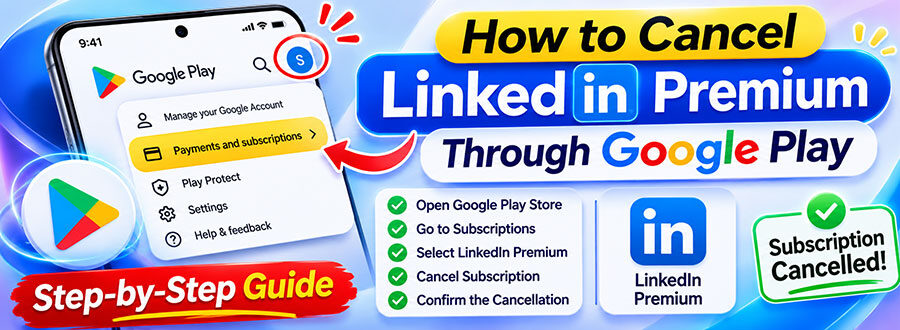
5. How to Cancel LinkedIn Premium Through Google Play
Android users who purchased Premium through Google Play can manage their membership through either LinkedIn or Google Play. how do you cancel linkedin premium, learn how to cancel your free trial before renewal.
Using Google Play directly is often convenient because it displays your subscriptions and billing information in one location.
Step-by-Step Google Play Instructions
<AsyncImage query=”Google Play Store Android profile payments subscriptions subscriptions screen screenshot” aspectRatio=”16:9″ width=”100%” />
Step 1: Open Google Play Store
Launch the Google Play Store application on your Android phone.
Step 2: Tap Your Profile Picture
Tap your profile icon in the upper-right corner.
Step 3: Open Payments and Subscriptions
Select Payments and subscriptions from the menu.
Step 4: Tap Subscriptions
Open the Subscriptions section.
You will see the subscriptions associated with your Google Account.
Step 5: Select LinkedIn
Find LinkedIn Premium in the list and open its subscription details.
Step 6: Choose Cancel Subscription
Tap Cancel subscription and follow the instructions.
Step 7: Confirm the Cancellation
Complete the confirmation process and check that the subscription status has been updated.
Alternative: Cancel Through the LinkedIn Website
Google Play purchases can also be managed through LinkedIn’s desktop website.
You can access Premium features, open the relevant subscription details in the Admin Center, and complete the cancellation process. how do you cancel linkedin premium, follow a simple guide for desktop users.
The important thing is to verify that the cancellation applies to the Google Play-billed membership.
6. When Should You Cancel to Avoid Another Payment?
Timing is one of the most important parts of subscription management.
You might decide to cancel because you no longer need the service, but waiting until the billing date can create unnecessary problems.
LinkedIn recommends cancelling at least one day before your next scheduled billing date to avoid another charge.
6.1 Understand Your Billing Date
Your billing date is the date on which your next subscription payment is scheduled.
You can review this information through the Manage Premium account area.
For example, imagine your next payment is scheduled for December 20.
You should complete the cancellation no later than December 19 to avoid the next scheduled charge.
Do not wait until the final hours if you can avoid it.
Technical problems, payment processing delays, and account access issues can make last-minute cancellation more difficult.
6.2 Set a Reminder Before Renewal
A simple calendar reminder can help prevent unwanted payments.
If you subscribe for a month, set a reminder a few days before the renewal date.
For annual subscriptions, setting an earlier reminder is particularly useful because the next payment may be significantly larger. how do you cancel linkedin premium, find out how to cancel your plan on mobile.
You can also keep a record of your subscription start date, renewal date, and payment provider.
6.3 Does Cancelling Stop the Current Payment Immediately?
Not necessarily.
For a paid membership purchased directly through LinkedIn, cancellation generally schedules the subscription to end when the current billing period finishes.
This means you can continue using your Premium features until the expiration date.
However, cancelling a free trial ends Premium access immediately.
These are two different situations, so always review the confirmation message carefully.
7. What Happens After You Cancel LinkedIn Premium?
Many users worry that cancelling their membership will delete their LinkedIn profile or remove their professional connections.
That is not what normally happens.
Cancelling a paid subscription changes your membership from Premium to the free Basic account after the applicable billing period ends. how do you cancel linkedin premium, avoid future charges by ending your subscription.
Your professional profile and existing connections remain available.
7.1 You Return to the Free LinkedIn Account
After your Premium membership expires, you can continue using the standard LinkedIn platform.
You can still:
- Maintain your professional profile.
- Connect with other members.
- Search for job opportunities.
- Apply for vacancies.
- Publish professional posts.
- Participate in discussions.
- Communicate with your existing connections.
You do not need to create a new LinkedIn account.
7.2 Which Premium Features Will Disappear?
At the end of the current billing period, you will lose access to eligible Premium features.
These may include:
- InMail messaging credits.
- Extended profile-view insights.
- Premium job insights.
- Advanced search filters.
- LinkedIn Learning access included with the membership.
- Premium profile badge.
- Additional career and business insights.
Any unused Premium benefits should not be assumed to remain available after the membership expires.
7.3 Will Your Profile Be Deleted?
No.
Cancelling Premium does not mean deleting your LinkedIn account.
Your profile remains part of the platform, and you can continue using the free features.
This is particularly important for job seekers who want to stop paying for Premium but still need LinkedIn to apply for employment opportunities. how do you cancel linkedin premium, understand the cancellation process step by step.
7.4 Can You Subscribe Again Later?
Yes.
You can generally purchase a Premium membership again when you decide that the additional features are useful.
However, if your previous subscription was purchased through Apple or Google, make sure the old subscription has properly expired before starting another membership. how do you cancel linkedin premium, explore how to manage your billing settings.
8. How to Cancel a LinkedIn Premium Free Trial
Free trials can be useful for testing paid features, but they can also lead to unwanted payments if you forget the renewal date.
Many trial offers require payment information before activation.
If you do not cancel before the trial ends, the membership may automatically convert into a paid subscription under the displayed terms.
8.1 Cancel Before the Trial Expires
Check the trial’s expiration date immediately after activating it.
Set a reminder several days before the deadline.
If you decide that you do not want the paid membership, complete the cancellation through the correct payment channel.
Do not assume that simply removing the application will stop the trial.
8.2 Important Difference Between Trial and Paid Membership
LinkedIn treats free trial cancellation differently from cancellation of an already paid subscription.
When you cancel an active paid membership, your Premium access generally continues until the end of the current billing period.
how do you cancel linkedin premium, cancel your subscription while keeping your account.
When you cancel a free trial, Premium access ends immediately.
This is important if you want to use the remaining trial period.
For example, if your trial has five days remaining and you cancel today, you should not assume that you can continue using Premium for those five days.
8.3 What If You Missed the Free Trial Deadline?
If your trial has already converted into a paid membership, you can still request cancellation.
However, cancelling does not automatically guarantee a refund for the charge.
LinkedIn’s refund policy states that eligible Premium subscriptions may be refundable within seven days of the charge if Premium features have not been used. Previous refunds may affect eligibility.
If Apple processed your payment, refund requests must be handled through Apple.
Always review the applicable refund conditions before submitting a request.
9. Can You Get a Refund After Cancelling LinkedIn Premium?
Cancelling a subscription and receiving a refund are two separate processes.
You may successfully stop future billing without receiving money back for the current subscription period.
LinkedIn’s published refund policy provides a possible refund window for eligible Premium subscriptions.
9.1 LinkedIn’s Seven-Day Refund Policy
According to LinkedIn’s official refund policy, certain Premium subscriptions may be refundable within seven days from the date of the charge, provided that Premium features have not been used.
Eligibility may also be affected by previous refund requests.
This is not an automatic refund for everyone.
You must review the conditions and submit a request through the appropriate support process.
9.2 What If You Purchased Through Apple?
If Apple billed your subscription, LinkedIn cannot directly issue the App Store refund.
You must contact Apple and follow its refund request process.
Keep your purchase receipt and any relevant subscription information available.
9.3 What If You Purchased Through Google Play?
Review the purchase and refund options available through Google Play.
The payment provider may have its own refund conditions and procedures.
9.4 How to Improve Your Chances of Resolving a Billing Problem
If you believe you were charged incorrectly:
- Identify the payment provider.
- Find the original transaction date.
- Check whether Premium features were used.
- Confirm that your cancellation was completed.
- Review the applicable refund policy.
- Submit a request through the correct support channel.
Providing accurate billing information can make the support process easier.
10. Common Problems When Cancelling LinkedIn Premium
Sometimes the cancellation process does not work as expected.
This does not necessarily mean your account has a serious problem. It may simply mean you are using the wrong payment method or account.
Here are some common issues and practical solutions.
10.1 The Cancel Subscription Button Is Missing
If you cannot find the cancellation option, check whether you are signed in to the correct LinkedIn account.
Next, identify whether Apple or Google manages your subscription.
If you purchased through Apple, use the Apple-managed cancellation route.
If you purchased through Google Play, check the Google Play subscription list.
For direct LinkedIn purchases, open the Admin Center and check the Purchases section.
10.2 LinkedIn Still Shows Premium After Cancellation
This may be normal for an active paid billing period.
Your membership can remain active until its scheduled expiration date even after cancellation has been confirmed.
Look for a cancellation confirmation and the date when your access ends.
Do not confuse continued Premium access with automatic renewal.
10.3 You Are Still Being Charged
If another payment appears after you believe you cancelled, investigate the billing record.
Check whether:
- You cancelled the correct account.
- You cancelled through the correct provider.
- The cancellation was confirmed.
- The payment was scheduled before cancellation.
- Another Premium subscription is active.
If the problem continues, contact the provider responsible for the payment.
10.4 You Cannot Access Your LinkedIn Account
If you cannot sign in, try recovering your account first.
Use LinkedIn’s account recovery process and verify your identity if requested.
If you cannot access the account before the next billing date, contact LinkedIn support and explain the subscription issue.
In some jurisdictions, LinkedIn provides additional cancellation options for eligible subscriptions.
10.5 You Cancelled but Did Not Receive an Email
An email confirmation is useful, but you should also review your subscription status directly.
Check the Manage Premium account page or the relevant Apple or Google subscription settings.
If the membership still appears active without a cancellation date, repeat the verification process or contact support.
11. How to Make Sure Your Subscription Is Fully Cancelled
Completing the cancellation steps is important, but verifying the result is equally important.
You do not want to assume that a subscription has ended when the payment provider still considers it active.
Use this simple checklist after completing the process. how do you cancel linkedin premium, learn what happens after you cancel your membership.
Cancellation Verification Checklist
- You selected the correct LinkedIn account.
- You identified the original payment provider.
- You followed the correct cancellation method.
- You completed the final confirmation.
- You checked the subscription status.
- You reviewed the next billing date.
- You saved the cancellation confirmation.
- You checked your email for a confirmation message.
11.1 Check Your LinkedIn Account
If you purchased directly through LinkedIn, review the Manage Premium account page.
Look for information showing that your subscription is scheduled to expire or has been cancelled.
11.2 Check Your Apple or Google Account
If your subscription was billed by Apple or Google, review the subscription status directly through the relevant account.
This provides another way to confirm that automatic renewal has been stopped.
11.3 Keep Your Cancellation Record
Save a screenshot or confirmation email.
If an unexpected charge occurs later, having a record of the cancellation date may help when contacting customer support.
12. Frequently Asked Questions
How do you cancel LinkedIn Premium without deleting your account?
You can cancel the paid membership through your subscription settings without closing your LinkedIn account. Your profile, connections, and basic networking features remain available after the Premium membership expires.
How long does it take to cancel LinkedIn Premium?
The cancellation process can usually be completed in a few minutes when you use the correct payment channel and have access to your account. The actual Premium expiration date depends on your billing cycle.
Can I cancel LinkedIn Premium immediately?
You can request cancellation at any time. However, an already paid membership generally remains active until the end of its billing period. A free trial ends immediately when cancelled.
Will I lose my LinkedIn connections after cancellation?
No. Your existing connections, profile information, and basic account features remain available. Only the Premium benefits expire.
Can I cancel LinkedIn Premium from my phone?
Yes. Supported cancellation options are available through the LinkedIn mobile application and the relevant Apple or Google subscription management settings. The correct method depends on where you purchased the membership.
How do I stop automatic renewal?
Complete the cancellation process through the original billing provider before your next scheduled billing date. LinkedIn recommends cancelling at least one day before renewal.
Can I cancel LinkedIn Premium during a free trial?
Yes. You can cancel an eligible free trial before it converts into a paid subscription. Be aware that cancellation ends Premium access immediately.
Why can I still use Premium after cancelling?
Your paid membership generally remains active until the end of the current billing period. Continued access does not necessarily mean that automatic renewal is still enabled.
Does deleting the LinkedIn app cancel my subscription?
No. Deleting the application does not automatically cancel the subscription. You must complete the cancellation process through LinkedIn, Apple, or Google, depending on your payment method.
Can I get my money back after cancelling?
Possibly. LinkedIn’s refund policy allows eligible Premium subscriptions to be considered for a refund within seven days of the charge if Premium features have not been used. Apple purchases require refund requests through Apple.
Can I use LinkedIn again after cancelling Premium?
Yes. Your account returns to the free Basic membership after the paid period ends. You can continue using LinkedIn and subscribe again whenever you need the additional features.
Conclusion
Managing a paid subscription should not be difficult, especially when you no longer need its features.
The most important thing is to identify how you purchased the membership and follow the matching cancellation procedure.
If LinkedIn billed you directly, use the Premium management area and Admin Center. If Apple billed you, manage the subscription through your Apple account or the supported LinkedIn application. If Google Play handled the payment, use LinkedIn or Google Play to complete the process.
Remember to cancel at least one day before your next scheduled billing date, check the confirmation, and keep a record of the result.
how do you cancel linkedin premium, get helpful tips for ending your premium subscription. Do you like this personality?
Whether you are ending a free trial or stopping a recurring payment, understanding these steps can help you avoid unnecessary charges while keeping your regular LinkedIn account active.
You do not need to delete your profile, lose your professional connections, or stop using the free platform simply because you no longer want a paid membership.