LinkedIn Premium Free Trial: How to Get It Without Getting Charged
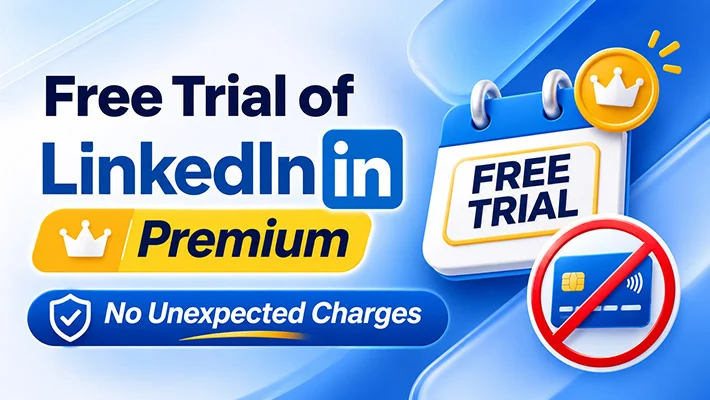
free trial of linkedin premium is an excellent opportunity to explore LinkedIn’s additional professional features without immediately paying for a monthly or annual subscription. Whether you are searching for a new job, trying to connect with recruiters, growing your professional network, or improving your skills, a trial can help you understand what the paid membership offers before making a financial commitment.
However, there is one important detail that many users overlook: a free trial is not necessarily a completely payment-free process. LinkedIn generally requires valid payment information to activate an eligible trial, and the membership automatically converts into a paid subscription when the trial ends unless you cancel beforehand.
This means you need to understand the eligibility requirements, activation process, renewal date, and cancellation conditions before clicking the trial button.
The good news is that you can explore Premium features while avoiding an unwanted subscription charge if you manage the trial correctly.
In this guide, we will explain how to get access, what features you can use, how long the trial lasts, how to check your eligibility, and how to prevent automatic billing. We will also cover desktop, Android, and iPhone instructions, common problems, and practical tips for making the most of your trial.
1. What Is the LinkedIn Premium Free Trial?
LinkedIn Premium is a paid membership that provides additional tools for professional networking, career development, business growth, and recruitment.
A trial allows eligible members to experience selected Premium features before deciding whether to continue with a paid membership.
Unlike a regular free LinkedIn account, Premium provides additional information and communication options that may help professionals use the platform more effectively.
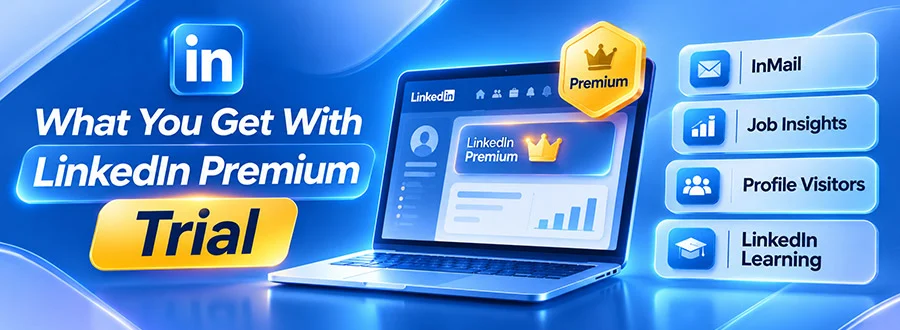
For example, job seekers can access additional job insights, communicate with eligible professionals outside their network, and explore profile visitor information.
Business professionals may use additional networking and prospecting features, while people interested in professional development can access LinkedIn Learning.
The main purpose of the trial is to let you evaluate these benefits before committing to a recurring subscription.
1.1 What Can You Access During the Trial?
The available features depend on the Premium plan offered to your account.
Some commonly advertised benefits include:
- InMail messaging credits.
- Additional profile visitor information.
- Job applicant insights.
- Top Applicant and Top Choice features.
- Advanced search filters.
- Professional profile insights.
- LinkedIn Learning courses.
- Additional business networking tools.
- Selected sales and recruitment features.
Not every feature is available with every subscription. For example, Premium Career and Sales Navigator are designed for different professional objectives.
Before activating an offer, review the features included in the exact plan displayed on your screen.
1.2 Is the Trial Completely Free?
The membership can provide access to Premium features without a subscription charge during the eligible trial period.
However, LinkedIn requires a valid payment card to activate many trial offers.
This means you may need to provide payment information even though the initial trial period costs nothing.
If you do not cancel before the renewal date, your payment method can be charged for the next billing cycle.
Therefore, free access and automatic renewal are two separate parts of the offer.
You should understand both before activating the membership.
2. Who Is Eligible for a Free Trial?
Not every LinkedIn member automatically qualifies for a trial.
Eligibility depends on several factors, including your previous Premium subscription history, current account status, promotional availability, and the offer presented to your account.
According to LinkedIn’s official eligibility guidance, members who are already using or have previously used a free Premium trial may not qualify for another free offer.
This restriction can apply even when more than twelve months have passed since an earlier trial.
2.1 Previous Premium Trial Users
If you previously activated a Premium trial, you may not receive another offer.
LinkedIn evaluates eligibility based on its current promotional conditions.
Creating another subscription request does not guarantee that you will become eligible.
The best approach is to check the eligibility message displayed when you access the Premium offer.
2.2 New LinkedIn Members
New members may see promotional offers when exploring Premium features.
However, having a recently created account does not guarantee trial access.
LinkedIn may consider account eligibility, previous membership activity, and regional availability.
2.3 Existing Premium Subscribers
If you are already paying for a Premium subscription, you generally cannot switch between different Premium plans for free during an active trial.
Changing your plan during a promotional period may end the original trial benefits and start a paid billing cycle.
Before making any changes, read the displayed subscription terms carefully.
2.4 Country and Promotional Availability
The availability and duration of offers can vary by country and promotional campaign.
Some users may see a one-month trial, while others may receive a different duration or no offer at all.
The trial displayed in your own account is the most reliable indication of what you can access.
Do not assume that an offer advertised on another website will also be available to your account.
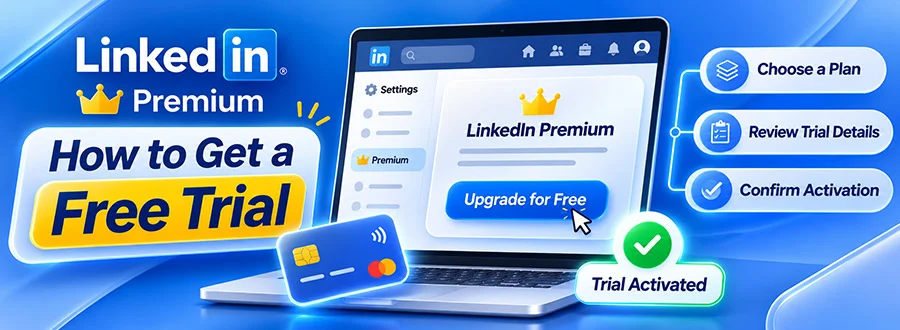
3. How to Get a Free Trial of LinkedIn Premium on Desktop
The desktop website provides a straightforward way to find and activate an eligible offer.
You do not need to purchase a subscription immediately. First, check whether LinkedIn has made a trial available to your account.
Step 1: Open LinkedIn
Visit https://www.linkedin.com and sign in using your regular account.
Make sure you use the account where you want to activate the trial.
If you manage multiple professional accounts, double-check the profile before continuing.
Step 2: Click the Me Icon
At the top of the LinkedIn homepage, click your profile picture or the Me icon.
A dropdown menu will appear with different account options.
Step 3: Open Settings & Privacy
Select Settings & Privacy from the dropdown menu.
This will take you to your account settings.
Step 4: Select Account Preferences
Look at the navigation panel and choose Account preferences.
Find the section labelled Subscriptions & payments.
Step 5: Click Upgrade for Free
Under the subscription section, look for Upgrade for Free.
If your account is eligible, LinkedIn may display an available Premium offer.
If you cannot see this option, your account may not currently qualify for a trial.
Step 6: Choose a Premium Plan
LinkedIn may display different plans depending on your eligibility.
Common options include:
- Premium Career.
- Premium Business.
- Premium All-in-One.
- Sales Navigator.
- Recruiter Lite.
- LinkedIn Learning.
Choose the plan that matches your professional needs.
Do not select a plan simply because it contains more features. Consider what you actually want to accomplish.
Step 7: Review the Trial Details
Before continuing, check:
- Trial duration.
- Included Premium features.
- Required payment information.
- Automatic renewal date.
- Subscription price after the trial.
- Available cancellation options.
Pay particular attention to the amount that will be charged when the promotional period ends.
Step 8: Enter Your Payment Information
LinkedIn generally requires a valid payment card to activate a trial.
Enter the requested information and check that the payment details are correct.
You should not assume that a payment card will never be charged simply because the initial offer is labelled free.
Step 9: Confirm Activation
Follow the remaining instructions and confirm the subscription.
Once activated, check your Premium account page to verify that the trial is active.
Also, record the renewal date immediately.
4. How to Get a Free Trial on Android
Android users can explore available Premium offers through the LinkedIn application.
The exact payment and subscription management process depends on whether the purchase is handled directly by LinkedIn or through Google Play.
Step 1: Open the LinkedIn App
Launch LinkedIn on your Android smartphone.
Sign in using the account you want to upgrade.
Step 2: Open Your Profile Menu
Tap your profile picture to open the account menu.
Look for the Premium features option.
Step 3: Explore Available Plans
Open the Premium section and review the offers displayed.
If your account qualifies, you may see an option to try Premium for free.
Step 4: Select Your Preferred Plan
Choose the membership that matches your goals.
For example, job seekers may prefer Premium Career, while professionals focused on sales prospecting may consider Sales Navigator.
Step 5: Review Payment Information
Check the trial duration, payment method, and renewal conditions.
If Google Play manages the purchase, you may be redirected to its subscription confirmation screen.
Step 6: Confirm the Trial
Complete the instructions and verify that your membership has been activated.
Afterward, open your subscription settings to identify the payment provider and renewal date.
5. How to Activate the Trial on iPhone
iPhone users can also access available Premium promotions.
However, Apple’s subscription management system introduces an additional consideration.
If the purchase is processed through the Apple App Store, the subscription must be managed through the relevant Apple subscription settings.
Step 1: Open LinkedIn
Launch the LinkedIn application and sign in.
Step 2: Find Premium Features
Tap your profile picture and navigate to Premium features.
Step 3: Review Available Offers
Check whether your account has an eligible promotional offer.
Read the plan details before selecting it.
Step 4: Complete the Subscription Process
Follow the instructions displayed by LinkedIn or Apple.
Review the payment confirmation carefully.
Step 5: Check Your Apple Subscription Settings
Open your iPhone Settings.
Tap your Apple Account, then select Subscriptions.
Look for LinkedIn and review the subscription information.
If Apple manages the purchase, this is where you can check the renewal date and manage cancellation.
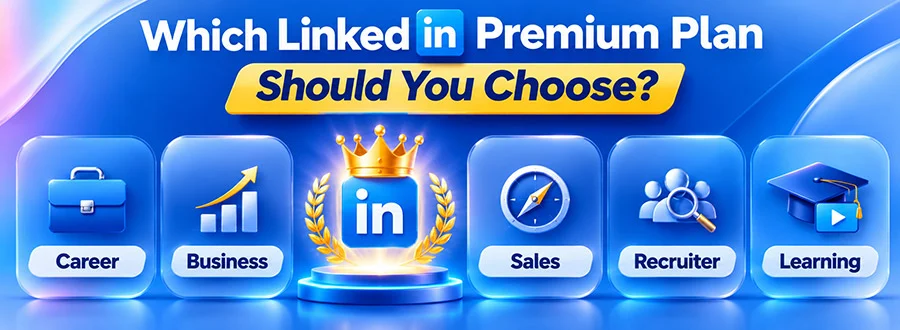
6. Which LinkedIn Premium Plan Should You Choose?
Choosing the correct plan is important because different memberships serve different professional purposes.
A trial is most valuable when you test features that solve a real problem.
6.1 Premium Career
Premium Career is designed primarily for job seekers and professionals exploring new employment opportunities.
Its features may include:
- InMail credits.
- Profile visitor information.
- Job applicant insights.
- Top Applicant information.
- Top Choice job features.
- LinkedIn Learning access.
This plan is particularly useful for people who want additional information during their job search.
For example, someone applying for digital marketing positions may use job insights to identify relevant vacancies and InMail to contact selected recruiters.
6.2 Premium Business
Premium Business focuses more on professional networking and business growth.
It may provide additional company and profile insights, networking options, and business-related features.
This plan may be relevant to consultants, entrepreneurs, business owners, and professionals who regularly develop new business relationships.
6.3 Sales Navigator
Sales Navigator is designed for sales professionals who need prospecting and lead-generation tools.
It provides specialized search and account insights that are different from the features included in a standard career membership.
People who mainly want to find employment should not automatically choose this plan.
6.4 Recruiter Lite
Recruiter Lite supports recruitment activities.
It is intended for professionals who identify potential candidates and manage recruitment-related outreach.
It is not normally the first choice for someone looking for a job.
6.5 LinkedIn Learning
LinkedIn Learning focuses on professional education.
It provides access to courses covering business, technology, communication, creative skills, and career development.
If your main objective is to improve your professional knowledge, this may be worth exploring.
7. How Long Does the Trial Last?
The duration of an offer depends on the promotional conditions presented to your account.
LinkedIn has offered one-month Premium trials, but not every member receives the same duration.
Some campaigns may provide different promotional periods.
Therefore, you should always check the trial expiration date before confirming activation.
7.1 Why the Trial Duration Matters
Imagine that you activate a one-month offer on November 16.
Your renewal date may fall around the corresponding date in December, depending on the exact activation time and billing terms.
You should not calculate the expiration date using an approximate calendar estimate.
Instead, review the date displayed in your Premium account or payment provider.
7.2 Check Your Renewal Date Immediately
After activating the offer, open your subscription management page.
Record the following information:
- Activation date.
- Trial expiration date.
- Next billing date.
- Monthly subscription price.
- Payment provider.
- Cancellation method.
This information makes it easier to avoid an unwanted payment.
7.3 Do Not Depend Only on Email Reminders
LinkedIn sends an email reminder before the end of certain free trials purchased through its desktop website.
However, reminder availability depends on the purchase method and account conditions.
Apple does not send the same type of LinkedIn trial reminder email for App Store subscriptions.
Google Play may provide its own notifications.
Your safest option is to create your own reminder instead of depending entirely on an automated email.
8. How to Avoid Getting Charged After the Trial
This is probably the most important section of the entire guide.
A free trial can become a paid subscription automatically if you do not cancel before the renewal date.
LinkedIn requires members to cancel at least one day before their next scheduled billing date to avoid being charged for another billing cycle.
8.1 Record the Renewal Date
As soon as your trial becomes active, write down the next billing date.
Do not wait until the final day to check your account.
8.2 Set a Calendar Reminder
Create a reminder several days before renewal.
For example, if your trial ends on December 16, set a reminder for December 12.
This provides time to review the subscription and complete cancellation if necessary.
8.3 Review Your Payment Method
Check which payment provider manages the subscription.
If you purchased directly through LinkedIn, use LinkedIn’s account management options.
If Apple or Google processes the payment, use the corresponding subscription settings.
8.4 Cancel Before the Deadline
Follow the cancellation process for your payment method.
Complete the final confirmation and verify that the subscription status has changed.
8.5 Save the Confirmation
Keep a screenshot or email showing that the trial was cancelled.
This can be helpful if you later notice an unexpected charge.
8.6 Understand What Happens When You Cancel
There is an important difference between cancelling a free trial and cancelling an already paid membership.
If you cancel a Premium free trial, LinkedIn ends the trial immediately. Your Premium features stop working at that point.
You do not continue receiving the remaining trial days.
This means you should consider the timing carefully.
If you want to explore all the available benefits, you can use the trial during the period and cancel before the renewal deadline, provided you do not miss the required cancellation cutoff.
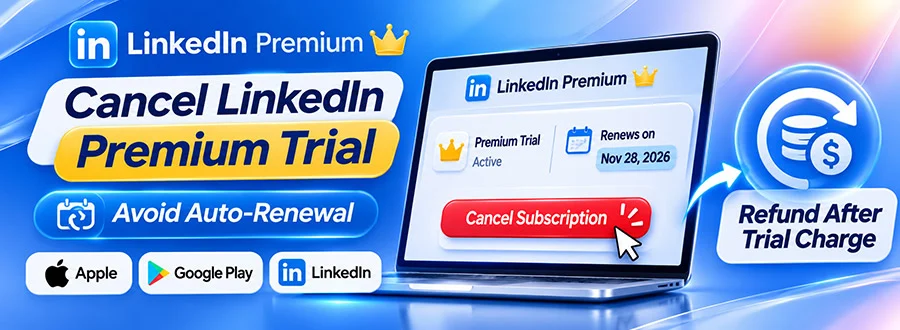
9. How to Cancel LinkedIn Premium Free Trial
If you decide that you do not want to continue with a paid membership, you should cancel through the original payment provider.
The exact process depends on how you activated the trial.
9.1 Cancel a Trial Purchased Directly Through LinkedIn
For a direct LinkedIn purchase:
- Sign in to LinkedIn.
- Click the Me icon.
- Select Premium features.
- Choose Manage subscription.
- Open Purchases in the Admin Center.
- Select your active subscription.
- Click Cancel subscription under Actions.
- Follow the instructions.
- Confirm your decision.
You can also use LinkedIn’s official cancellation page:
https://www.linkedin.com/help/linkedin/answer/a542656
Once the cancellation is confirmed, check the account status.
Remember that ending a trial immediately removes Premium access.
9.2 Cancel an Apple App Store Trial
If Apple manages your subscription:
- Open Settings on your iPhone.
- Tap your Apple Account.
- Select Subscriptions.
- Choose LinkedIn.
- Tap Cancel Subscription.
- Confirm the cancellation.
If the subscription does not appear, check whether you used another Apple Account.
9.3 Cancel a Google Play Trial
If Google Play manages your subscription:
- Open Google Play Store.
- Tap your profile picture.
- Select Payments and subscriptions.
- Open Subscriptions.
- Select LinkedIn.
- Tap Cancel subscription.
- Follow the instructions.
- Verify the updated status.
You can also manage eligible Google Play subscriptions through the desktop website.
9.4 What Happens If You Cancel Too Early?
Cancelling a free trial ends Premium access immediately.
You will lose the trial benefits even if the original promotional period has not finished.
This is different from cancelling a paid subscription, where Premium access generally continues until the current billing period ends.
The distinction is important when deciding when to cancel.
10. What Premium Features Should You Test During the Trial?
Activating a trial without exploring the available features is a missed opportunity.
If you have access to Premium for a limited period, create a plan for testing the tools that matter most.
10.1 Test InMail
If your plan includes InMail credits, identify a few relevant professionals you would like to contact.
For job seekers, these might include recruiters or hiring managers.
Write personalized messages rather than sending generic introductions.
10.2 Review Profile Visitor Information
Explore the additional profile-view information available to your account.
Check whether the visitors are connected to your target industry, companies, or professional interests.
Use this information to understand whether your profile is reaching relevant audiences.
10.3 Explore Job Insights
If you are searching for employment, compare several vacancies with your experience.
Look at the requirements, applicant information, and available insights.
Use the information to prioritize relevant applications.
10.4 Try LinkedIn Learning
Select courses related to your professional goals.
For example, an SEO professional could explore technical SEO, analytics, and digital marketing topics.
A project manager might choose courses about leadership, communication, and project planning.
10.5 Review Advanced Search Features
Explore the available filters and search tools.
Determine whether they help you find more relevant professionals, companies, or opportunities.
At the end of the trial, consider which features actually improved your work.
11. Common Problems When Activating a Free Trial
Some members encounter difficulties when trying to access a promotional offer.
Understanding the common reasons can help you avoid unnecessary troubleshooting.
11.1 The Free Trial Button Is Missing
This may happen because your account is not eligible.
LinkedIn may also have different promotional offers depending on location and account history.
Check your Premium eligibility information and review whether you previously used a trial.
11.2 Your Payment Card Is Declined
LinkedIn generally requires valid payment information to activate an offer.
If your card is declined, check:
- Card number.
- Expiration date.
- Billing address.
- Available balance.
- International payment permissions.
- Bank restrictions.
If the issue continues, contact your card issuer.
11.3 You Cannot Switch Premium Plans During the Trial
LinkedIn does not allow members to switch between different Premium plans for free during an active trial.
Changing the plan may end the original trial benefits and start paid billing immediately.
Therefore, select the appropriate membership before activating the offer.
11.4 Your Trial Ended Unexpectedly
Check the original activation date and the billing information.
Remember that trial dates can depend on the activation time and applicable time zone.
For members outside the United States using other language settings, LinkedIn’s published terms specify UTC for billing and renewal date calculations.
This can be important when checking the exact expiration time.
11.5 You Were Charged Even Though You Thought You Cancelled
First, review your cancellation confirmation.
Check whether the subscription was cancelled through the correct payment provider and whether the cancellation occurred before the deadline.
If you believe the charge was incorrect, contact the billing provider and explain the situation.
Do not assume that simply removing the LinkedIn app or deleting your payment information cancels the membership.
12. Can You Get a Refund If You Were Charged After the Trial?
Sometimes users discover an unwanted payment only after the trial has already converted into a paid subscription.
In this situation, cancellation alone will not automatically return the money.
However, you may be eligible to request a refund depending on the circumstances.
LinkedIn’s published refund policy allows eligible Premium subscriptions to be refundable within seven days from the date of the charge when Premium features have not been used.
Previous refunds may affect eligibility.
12.1 Request a Refund From LinkedIn
If LinkedIn processed the payment directly, visit its official refund policy:
https://www.linkedin.com/help/linkedin/answer/a1337140
Review the conditions and follow the available refund request instructions.
Provide the subscription details and explain when the charge occurred.
12.2 Request a Refund From Apple
If Apple processed the payment, visit:
Sign in with your Apple Account, select the relevant transaction, and follow the refund request process.
12.3 Request a Refund From Google Play
If Google Play processed the payment, review the transaction through your Google Play purchase history.
Use the Report a Problem option where available and provide the reason for the request.
12.4 Is a Refund Guaranteed?
No.
A refund depends on the applicable policy, payment provider, subscription usage, and regional consumer protection requirements.
Submit your request promptly and provide accurate information.
13. Is LinkedIn Premium Worth Trying for Free?
A trial can be useful when you have a clear reason for exploring the additional features.
However, not every member needs a paid subscription.
13.1 For Job Seekers
Premium Career may help job seekers access additional applicant insights, communicate with selected recruiters, and explore professional learning resources.
It is most useful when you already have a strong profile and a clear job-search strategy.
13.2 For Business Owners
Business professionals may find additional networking and company-related insights useful.
The value depends on whether these features support actual business activities.
13.3 For Sales Professionals
Sales Navigator may be worth evaluating if you regularly identify prospects, research companies, and build professional sales relationships.
Its specialized features are different from those of a career-focused subscription.
13.4 For Students and Beginners
Students may benefit from professional learning resources and additional career information.
However, a free LinkedIn account can already provide many useful networking and job-search opportunities.
You should not feel pressured to pay for Premium simply because it is available.
14. Frequently Asked Questions
Is LinkedIn Premium free for one month?
LinkedIn has offered one-month trials, but the duration varies by region, promotion, and account eligibility. Check the offer displayed in your account.
Do I need a credit card to activate the trial?
LinkedIn generally requires a valid credit card to activate its free Premium trial. The payment method may be charged when the trial converts into a paid membership.
Can I get another free trial after cancelling?
Not necessarily. LinkedIn states that cancelling a free Premium trial makes you ineligible for another free trial for at least 12 months. Previous trial usage may also prevent future eligibility.
Will LinkedIn charge me automatically after the trial?
Yes, unless you cancel before the trial ends. The membership automatically converts into a paid plan under the displayed subscription terms.
Can I cancel immediately after activating the trial?
Yes, but cancelling a free trial ends Premium access immediately. You will not retain the remaining trial period.
Does LinkedIn send a reminder before charging?
LinkedIn sends an email reminder before the trial ends for certain subscriptions purchased through its desktop website. Apple does not send the same LinkedIn email reminder for App Store subscriptions. Google may provide its own notification.
Can I use Premium without entering payment information?
Most official trial offers require valid payment information. Availability may vary by promotional terms, so check the activation screen.
Can I change my Premium plan during the trial?
LinkedIn does not allow members to switch between different Premium plans for free during an active trial. Changing plans may trigger immediate billing.
What happens when my trial ends?
If you do not cancel, your membership automatically converts into a paid subscription and your payment method is charged according to the displayed billing terms.
Does cancelling the trial delete my LinkedIn account?
No. Your LinkedIn profile, professional connections, and basic account features remain available. Only the Premium trial benefits end.
Conclusion
The free Premium offer can be a useful way to explore LinkedIn’s professional tools without immediately committing to a paid membership.
However, understanding the subscription conditions is essential.
Check your eligibility, choose the correct plan, review the trial duration, and record the automatic renewal date before activating the offer.
Most importantly, do not depend entirely on email reminders. Create your own reminder and complete the cancellation process at least one day before the scheduled billing date if you do not want to continue.
If you use the trial strategically, you can evaluate the additional features, understand their practical value, and make an informed decision about whether a paid membership deserves a place in your professional budget.
A free trial should give you an opportunity to explore the service, not become an unexpected monthly expense.
Meta
Free Trial of LinkedIn Premium: Get It Without Charges
Get a free trial of LinkedIn Premium, check eligibility, explore features, and learn how to cancel before renewal to avoid unexpected subscription charges.