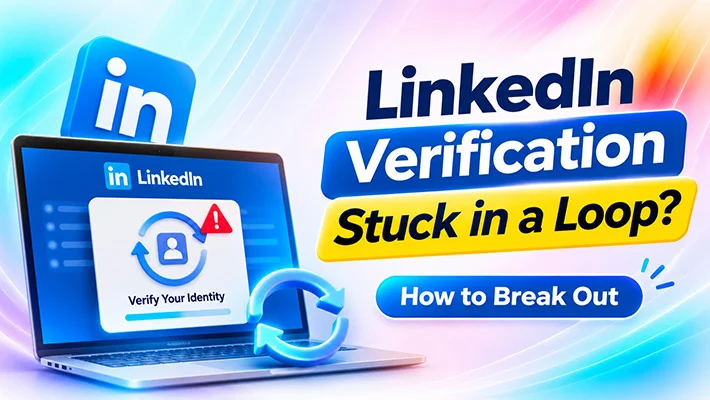
LinkedIn Verification Stuck in a Loop? How to Break Out
linkedin verification loop problems can make a simple security check feel impossible. You complete the requested steps, submit your information, and expect to return to your account. Instead, LinkedIn sends you back to the same verification screen. Sometimes the page refreshes repeatedly. Other times, you receive an error just when the process appears to be finished.
This situation is particularly frustrating when you need LinkedIn for job applications, client communication, or professional networking. You may worry that your account is restricted or that your previous verification attempts have failed.
However, repeated verification screens don’t always mean your account has been permanently blocked.
Browser sessions, expired links, unsupported documents, interrupted identity checks, and account security reviews can all contribute to verification problems. The appropriate solution depends on where the process fails and which verification method you’re using.
This guide explains why verification can repeat, how to troubleshoot common errors, and when to contact official support. You’ll also learn how to protect your information, avoid unnecessary resubmissions, and distinguish technical failures from security-related restrictions.
What Is a LinkedIn Verification Loop?
A linkedin verification loop occurs when you repeatedly return to a verification step without successfully completing the intended process.
For example, you might sign in, receive an identity confirmation request, complete the instructions, and then encounter the same request again.
Another possibility is being redirected between LinkedIn and an approved verification provider without receiving a clear completion message.
These situations can look similar but have different causes.
How to Recognize a Repeating Verification Process
Common symptoms include:
- Returning to the same identity verification page after submitting information.
- Repeatedly receiving a request to confirm your email or phone number.
- Being redirected between LinkedIn and a verification provider.
- Completing document capture without receiving a final result.
- Encountering a recurring error after signing in.
- Seeing a verification request again after refreshing the browser.
A single unsuccessful attempt isn’t necessarily a loop. The defining characteristic is that the process repeatedly returns to an earlier stage without a clear resolution.
Why LinkedIn May Request Verification
LinkedIn uses verification and security checks for different purposes.
Optional profile verification can confirm eligible identity or workplace information. Security-related identity checks may help LinkedIn evaluate account access or suspicious activity.
These processes shouldn’t be confused.
A person attempting optional profile verification may have different recovery options from someone who must complete identity confirmation to regain account access.
Why Is LinkedIn Verification Stuck?
When linkedin verification stuck describes your experience, identifying the cause is more useful than repeatedly restarting the process.
Verification can involve several connected systems, including your browser, LinkedIn’s authentication service, an email provider, and sometimes an external identity verification provider.
A failure at one stage can interrupt the entire experience.
1. Expired Browser Sessions
Authentication sessions don’t remain valid indefinitely.
If you leave a verification page open for an extended period, the session may expire.
When you return, the process might redirect you to an earlier step.
This can resemble a technical malfunction even when the system is enforcing normal session requirements.
2. Cookies or Browser Restrictions
Some verification flows rely on cookies and temporary session information.
Restrictive browser settings, incompatible extensions, or corrupted site data may interfere with that process.
If the verification service cannot maintain the required session, you may be redirected repeatedly.
3. Interrupted Identity Checks
Document capture and identity confirmation can require several consecutive steps.
Closing the page, losing connectivity, or switching devices unexpectedly may interrupt the process.
A partially completed submission doesn’t necessarily produce a valid verification result.
4. Unsupported Identification
Certain identity verification methods require specific document types or electronic capabilities.
A valid national identity card may still be unsupported by a particular provider.
Repeatedly submitting an ineligible document won’t resolve the underlying eligibility problem.
5. Additional Account Security Requirements
LinkedIn may require additional checks before allowing access to an account.
Completing one step doesn’t always satisfy every outstanding requirement.
If the account is restricted, follow the instructions associated with that restriction rather than treating it as ordinary optional profile verification.
Fix 1: Restart the Verification Process Carefully
The first step in resolving a linkedin verification loop is determining whether your previous attempt actually finished.
Avoid immediately requesting another verification session.
Look for a confirmation message, pending status, or error indicating what happened.
Close Incomplete Sessions
If the page has stopped responding and no submission is pending, close the inactive verification window.
Return to LinkedIn through its official website or application.
Sign in again if necessary.
Use the verification option provided within your account instead of an old bookmarked verification link.
Start Only One Active Attempt
Opening several verification sessions simultaneously can create confusion.
One window may contain an expired session while another contains a newer request.
Complete the steps in a single active session whenever possible.
Follow Any Waiting Instructions
If LinkedIn or the provider tells you to wait, don’t repeatedly restart the process.
Some systems restrict repeated attempts for security reasons.
A fresh attempt should be made only when the interface permits it.
When Should You Avoid Restarting?
If your submission is explicitly marked as pending or under review, restarting may be unnecessary.
Follow the instructions shown in the official interface.
A pending review isn’t automatically a technical failure.
Fix 2: Clear Browser and Cookie Problems
A common reason for linkedin verification stuck issues is difficulty maintaining the authentication session.
Browser cookies, privacy settings, and extensions can affect how websites remember an active verification process.
Try an Updated Browser
Open LinkedIn using a current, supported browser.
Install available updates before attempting verification again.
Outdated browsers may struggle with modern authentication pages or identity verification components.
Review Browser Extensions
Some ad blockers, script blockers, and privacy extensions restrict website functionality.
If you suspect an extension is interfering, test the process with that extension temporarily disabled.
Only make changes you’re comfortable with, and restore your preferred protections afterward.
Clear Relevant Site Data
Corrupted session information can sometimes cause repeated redirects.
Clearing LinkedIn-related site data may help establish a fresh session.
However, this can sign you out and remove temporary settings.
Make sure you can access your account credentials and any required authentication method before proceeding.
Test a Private Browsing Window
A private browsing window can help identify whether stored browser information is involved.
If verification works there but fails in your normal browser, cookies or extensions may be contributing factors.
Private browsing won’t resolve an unsupported document or an actual account restriction.
Fix 3: Resolve the “Something Went Wrong” Error
The message linkedin verification something went wrong is particularly confusing because it doesn’t always explain which step failed.
The same general error can appear in different circumstances.
Rather than guessing, record where the message appears and what you were doing immediately beforehand.
Check Your Internet Connection
An unstable connection can interrupt verification pages, document uploads, and redirects.
Use a reliable network and avoid switching connections during an active identity check.
If the connection drops, confirm whether your submission was received before attempting again.
Update Your LinkedIn Application
If you’re using the mobile application, check for available updates.
Restart the application after updating.
If the error continues, compare the behavior with LinkedIn’s official website using a compatible browser.
Review Camera Permissions
Some identity verification methods require access to your smartphone camera.
If the camera is blocked, document capture may fail.
Review the permissions for the relevant application or browser.
Also check whether another application is currently using the camera.
Record the Exact Error
If linkedin verification something went wrong keeps appearing, take note of the message and the stage where it occurs.
For example, the error might appear after document submission, during a redirect, or immediately after signing in.
These details can help official support identify the appropriate troubleshooting path.
Fix 4: Check Your Identity Verification Provider
If the linkedin verification loop begins after you’re redirected to an external identity verification service, the problem may involve the provider’s process.
LinkedIn uses approved verification providers for certain identity checks. Requirements can vary by country, document type, and available technology.
Confirm Which Provider You’re Using
Begin verification through LinkedIn’s official interface.
Check which authorized provider is handling your request.
Read the provider’s instructions rather than relying on an unrelated tutorial.
Different providers may require different identification documents or device capabilities.
Check Document Compatibility
Before uploading identification, confirm that your document type and issuing country are supported.
Some methods require an eligible passport with electronic features.
Other methods may support additional identification types.
A document being legally valid doesn’t guarantee compatibility with every verification system.
Improve Document Capture Quality
Poor lighting, glare, and blurred images can prevent successful document checks.
Place the document on a stable surface and follow the capture instructions.
Avoid editing identification images or covering required details.
If a live selfie is requested, complete it through the authorized interface.
Avoid Repeated Unsuccessful Submissions
When linkedin verification stuck occurs after document submission, check whether the provider displays a specific error.
Correct the identified issue before trying again.
If the provider indicates that your submission is under review, follow its instructions.
Repeated attempts cannot guarantee a faster decision.
Fix 5: Troubleshoot Email and Phone Verification
Not every linkedin verification loop involves government identification.
Some problems occur while confirming an email address, entering a security code, or completing two-step verification.
These processes require different troubleshooting steps.
Check Your Registered Contact Information
Make sure LinkedIn is sending the verification message to an email address or phone number you can access.
An old contact method can prevent successful confirmation.
If you’re signed in, review your account settings when available.
Use the Latest Verification Code
Requesting several codes can make earlier messages unusable.
If multiple codes arrive, follow the instructions for your current session.
Enter the code carefully and avoid copying unwanted spaces.
Check Email Filtering
Search your inbox, spam folder, and archived messages.
Company email systems may also quarantine automated messages.
If you’re using an eligible workplace email address, your organization’s IT team may be able to investigate blocked delivery.
Review SMS Delivery
Confirm that your phone has a working mobile connection.
Check the registered number and country code.
Some carriers restrict automated authentication messages.
If ordinary messages arrive but verification texts consistently fail, contact your mobile provider.
What About Authenticator Apps?
Authenticator applications generate time-sensitive codes.
Make sure your device’s date and time are synchronized automatically.
If you no longer have access to your authenticator, use LinkedIn’s available account recovery options.
Fix 6: Check Whether Your Account Is Restricted
Sometimes linkedin verification stuck is a symptom of an account access problem rather than an ordinary verification error.
LinkedIn may request additional identity confirmation when its security systems identify activity requiring review.
The exact reason may not always be disclosed.
Read the Restriction Notice
If LinkedIn displays an account restriction message, read it carefully.
Look for instructions about identity verification, appeals, or account recovery.
Don’t assume that completing optional profile verification will remove a security restriction.
These are different processes.
Avoid Creating Another Account
Creating a replacement profile to bypass a restriction may create additional problems.
Instead, follow the recovery procedure associated with your existing account.
Maintain accurate information and avoid using someone else’s identity documents.
Understand Why Reviews May Take Time
Some security-related reviews require additional processing.
A successful document submission doesn’t always mean the account will immediately become accessible.
Wait for the official result and follow any additional instructions.
Protect Your Account During Recovery
Use a strong password and avoid sharing login credentials.
Be cautious of messages claiming that someone can remove your restriction instantly.
Never provide authentication codes to unofficial recovery services.
Fix 7: Resolve Repeated Redirects Between LinkedIn and Persona
A linkedin verification loop can sometimes involve repeated navigation between LinkedIn and Persona, an identity verification provider used in certain verification experiences.
For example, you might complete a document check, return to LinkedIn, and discover that the process hasn’t been marked complete.
This doesn’t automatically prove that Persona rejected your information.
Check Whether the Submission Finished
Look for an explicit completion message or status.
If the provider confirms that processing is underway, avoid beginning another attempt without instructions.
If the session failed, determine whether restarting is permitted.
Keep the Verification Session Consistent
Complete the process using the supported device and browser.
Avoid closing the original session while switching between unrelated windows.
If a mobile handoff is required, follow the instructions carefully.
Review Device Compatibility
Some identity verification methods require specific camera or document-reading capabilities.
An unsupported device may prevent successful completion.
Check the provider’s requirements before repeating the process.
When the Error Persists
If linkedin verification something went wrong appears after returning from Persona, record the stage where the failure occurs.
Use LinkedIn’s official help resources or the authorized provider’s support instructions, as appropriate.
Don’t upload identity documents to an unfamiliar website that promises to fix the redirect.
Fix 8: Contact LinkedIn Support With Clear Details
When linkedin verification stuck continues despite reasonable troubleshooting, official support may be necessary.
A clear explanation can make the issue easier to understand.
You don’t need to send multiple messages containing the same information.
Describe the Exact Problem
Explain whether you’re completing optional identity verification, workplace verification, sign-in security, or account recovery.
Describe where the process repeats.
For example, mention whether you return to the document capture page or encounter the same login prompt after completing a check.
Include Relevant Technical Details
Useful information may include your device type, browser, verification method, and the exact error displayed.
Mention whether you’ve already tested a different supported browser or updated your application.
Avoid including passwords, authentication codes, or unnecessary identity information.
Use Official Support Channels
Visit the LinkedIn Help Center and locate the guidance related to your verification or account access issue.
If LinkedIn provides a specific appeal or recovery process, use that route.
Support availability and response times can vary.
What If You Cannot Sign In?
Look for account recovery options accessible from the sign-in process.
If your account is restricted, follow the instructions in the restriction notice.
Don’t assume that creating a new account will solve the underlying problem.
LinkedIn Verification Something Went Wrong: Error Checklist
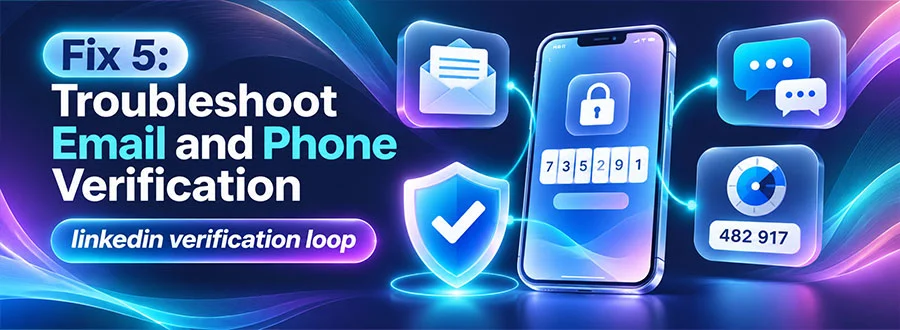
The message linkedin verification something went wrong can appear during different stages, so the appropriate response depends on the symptom.
| Problem | Possible cause | Suggested action |
| Repeated sign-in page | Expired or interrupted session | Start a permitted fresh session |
| Document upload fails | Image quality or compatibility | Review document requirements |
| Provider redirects repeatedly | Session handoff problem | Use one supported verification flow |
| Verification code rejected | Expired or superseded code | Use the latest valid code |
| Camera doesn’t open | Missing permissions | Review device settings |
| Account remains restricted | Additional security review | Follow official recovery instructions |
| Submission remains pending | Processing not completed | Wait for the stated instructions |
Why the Same Error Can Have Different Causes
A generic error message doesn’t identify a single technical failure.
It may appear because a request timed out, a document couldn’t be processed, or the verification session became invalid.
That’s why troubleshooting should focus on the exact step where the error occurs.
When to Stop Troubleshooting
If you’ve completed the supported steps and the system explicitly requests additional review, further technical changes may not help.
Wait for the official instructions.
If the process remains unresolved and no guidance is provided, contact the appropriate support channel.
How to Prevent Verification Loops in the Future
Preventing another linkedin verification loop starts with maintaining accurate account information and completing verification carefully.
You cannot prevent every technical issue, but you can reduce avoidable interruptions.
Keep Your Contact Information Updated
Maintain access to the email address and phone number associated with your account.
Review your security settings periodically.
If you change devices or phone numbers, update your recovery information when possible.
Use Compatible Software
Keep your browser, operating system, and LinkedIn application updated.
Use supported devices for identity verification.
Avoid attempting complex verification steps through outdated or heavily modified browsers.
Prepare Documents Before Starting
Check document eligibility, validity, and technical requirements.
Choose a well-lit environment for document capture.
Make sure you have enough time to complete the process without interruptions.
Avoid Excessive Verification Attempts
Repeated submissions may create confusion or trigger temporary limits.
Read error messages carefully.
Only restart when the system permits another attempt.
Recognize Suspicious Recovery Offers
Fraudulent services sometimes target people who cannot access their accounts.
They may promise immediate verification, restriction removal, or guaranteed recovery.
Avoid these offers and protect your personal information.
Frequently Asked Questions About LinkedIn Verification
Why Does LinkedIn Keep Asking Me to Verify?
A linkedin verification loop may occur because a session expired, an earlier verification attempt wasn’t completed, or additional security checks remain necessary.
Review the instructions displayed and identify whether you’re completing profile verification or account recovery.
How Do I Fix LinkedIn Verification Stuck on the Same Page?
If linkedin verification stuck describes your situation, check your browser, connection, and session status.
Avoid repeatedly restarting a pending submission. Contact official support if the problem continues.
Why Does LinkedIn Verification Say Something Went Wrong?
The error linkedin verification something went wrong doesn’t identify one specific cause.
It may involve connectivity, device compatibility, document processing, or an interrupted session.
Record the exact stage where it appears.
Can I Fix the Problem Without Contacting Support?
Sometimes. Updating your browser, correcting document issues, or completing a fresh authorized session may resolve the problem.
However, account restrictions and unresolved reviews may require official assistance.
Does Repeating Verification Make Approval Faster?
No. Repeated attempts don’t guarantee faster processing and may create additional confusion.
Follow the instructions associated with your latest submission.
Can a LinkedIn Verification Loop Permanently Block My Account?
A linkedin verification loop doesn’t automatically mean permanent account loss.
However, an underlying restriction may require a separate recovery process.
Follow LinkedIn’s official instructions rather than attempting to bypass security checks.
Final Thoughts: Breaking Out of Repeated Verification
When linkedin verification stuck prevents you from accessing your account, the best approach is to identify the failed step before trying again.
Check whether the issue involves an expired session, unsupported identification, a technical redirect, or an account security requirement.
If linkedin verification something went wrong continues appearing, document the error and follow the appropriate official support process.
Avoid excessive submissions, unofficial recovery services, and unnecessary changes to accurate account information.
With careful troubleshooting and the correct recovery route, many verification problems can be addressed without compromising your account security.